
Möbel-Visualisierer
- Foto
- Deine Auswahl
- Dein Bild
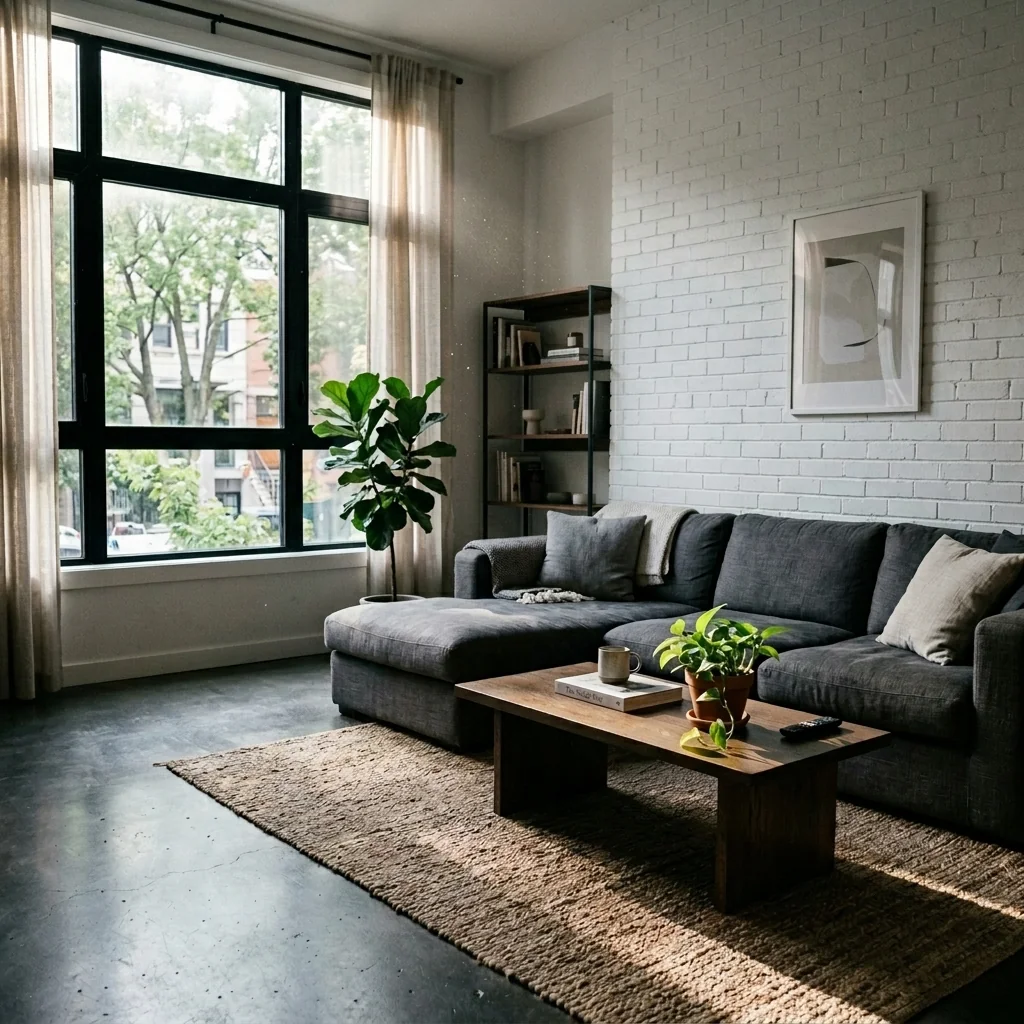
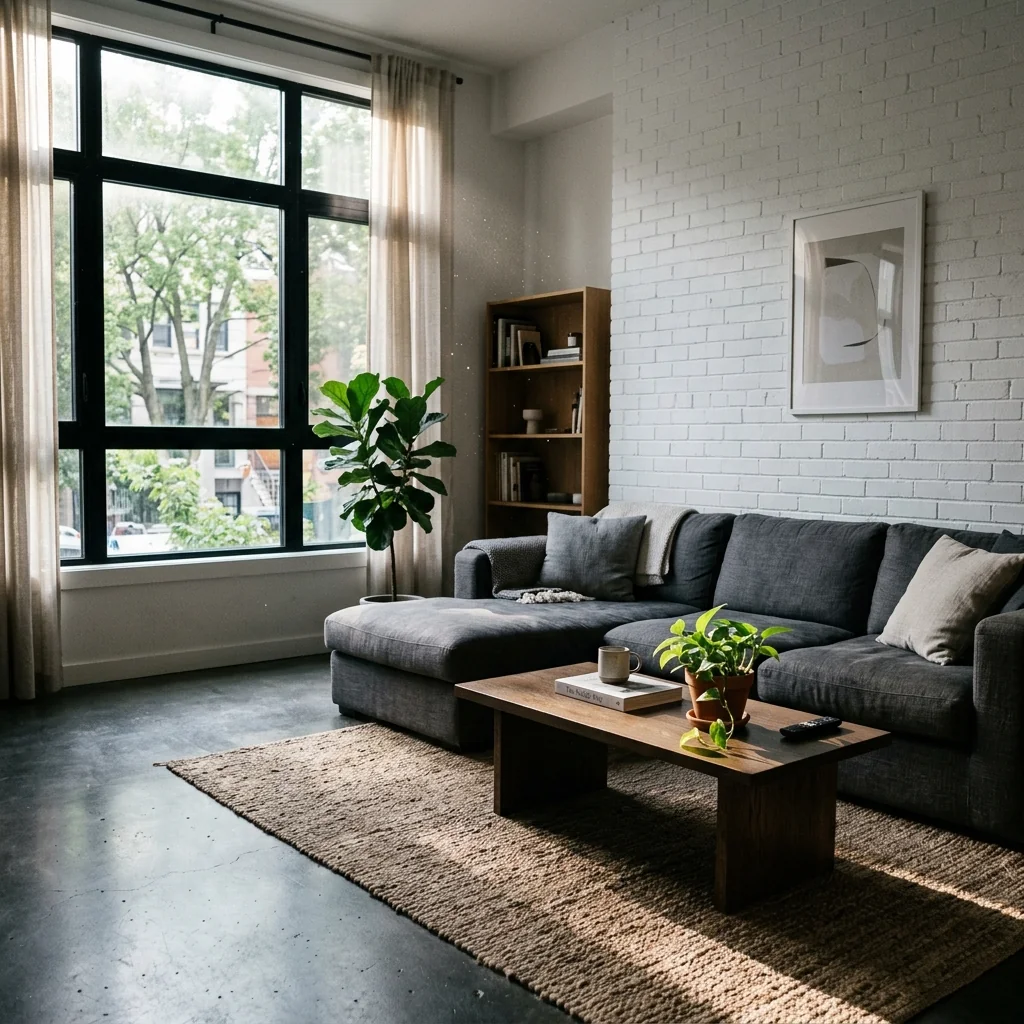
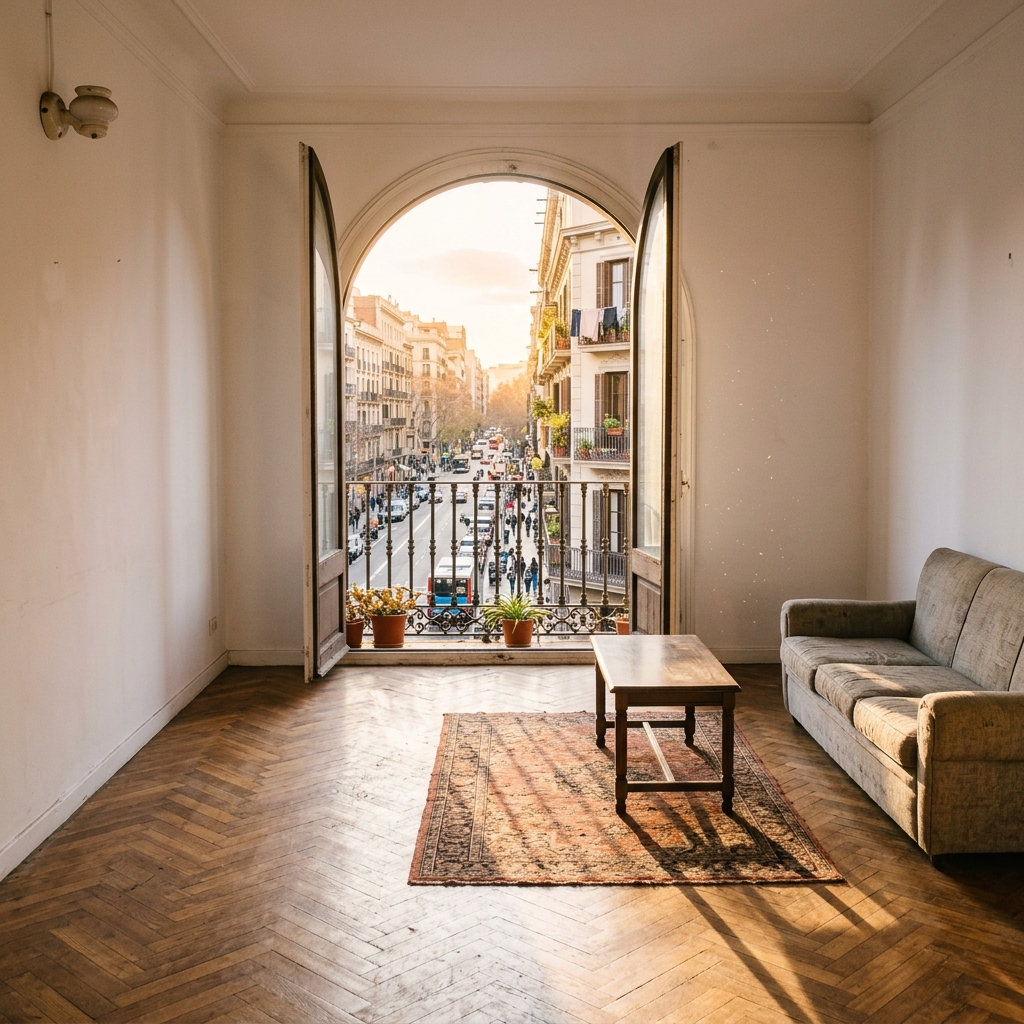
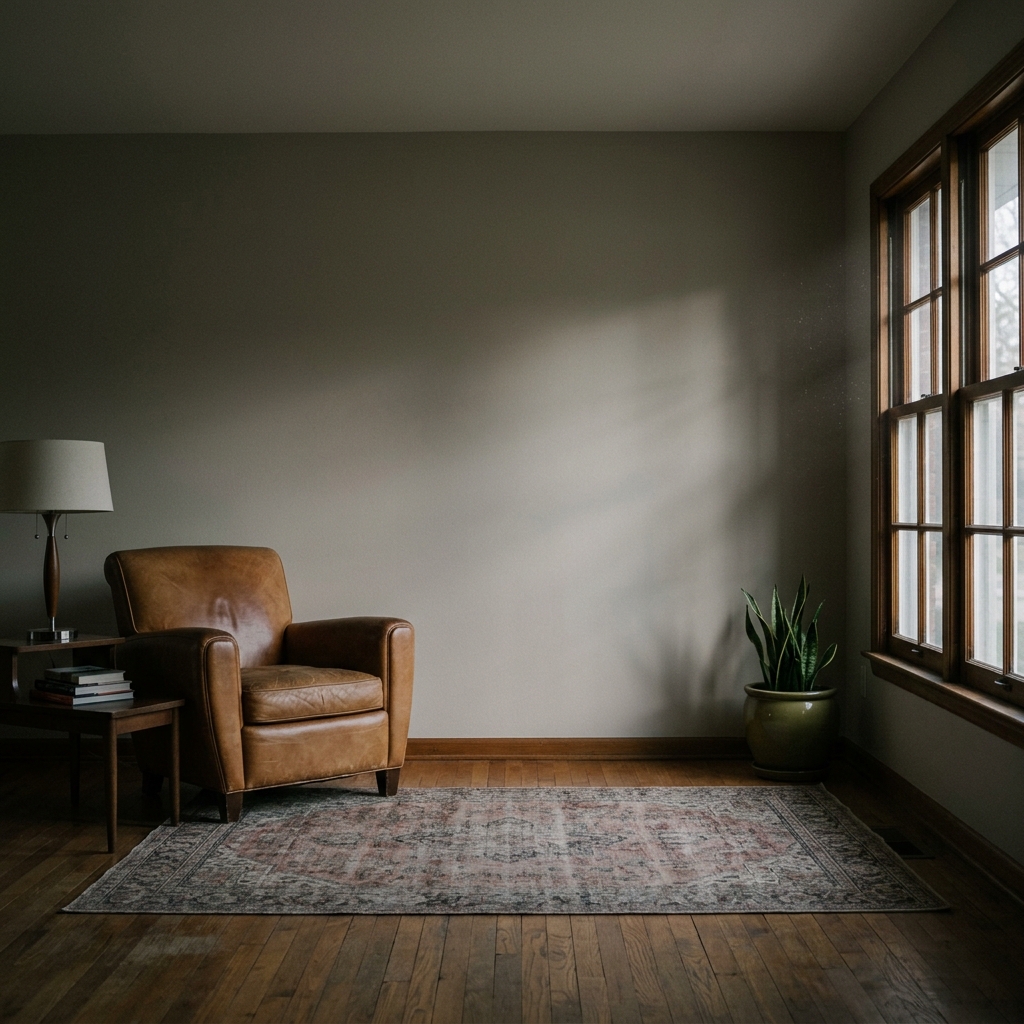
Sieh, was möglich ist
Echte Ergebnisse aus Fotos wie deinem.


So funktioniert es
- 1Lade dein Foto hoch
- 2Wähle deine Einstellungen
- 3Dein Bild
Tipps für ein gutes Ergebnis
Helles, klares Foto
Tageslicht und ein Weitwinkel liefern das beste Ergebnis.
Zeig den gesamten Bereich
Behalte alles im Bild, was du ändern möchtest.
Probiere mehrere Varianten
Vergleiche verschiedene Optionen, bevor du dich entscheidest.
Häufige Fragen
Darf ich die Bilder kommerziell nutzen?
Ja. Du kannst deine Bilder für jeden Zweck verwenden, einschließlich kommerzieller Nutzung.
Ändert sich mein Originalfoto?
Nein. Dein Original bleibt unverändert und du kannst es jederzeit herunterladen.
Was ist, wenn mir das Ergebnis nicht gefällt?
Probiere einen anderen Stil oder eine andere Einstellung aus oder verfeinere das Ergebnis mit einer kurzen Anweisung.
Weitere Tools entdecken
Alle Tools
Aerial Landscaping Enhancement
Nutze ein Luftbild der Immobilie, um mit den verfügbaren Einstellungen Gestaltungsideen zu erkunden. Vergleiche ein zurückgegebenes Bild mit deinem Original; es ist kein vermessener Lageplan.
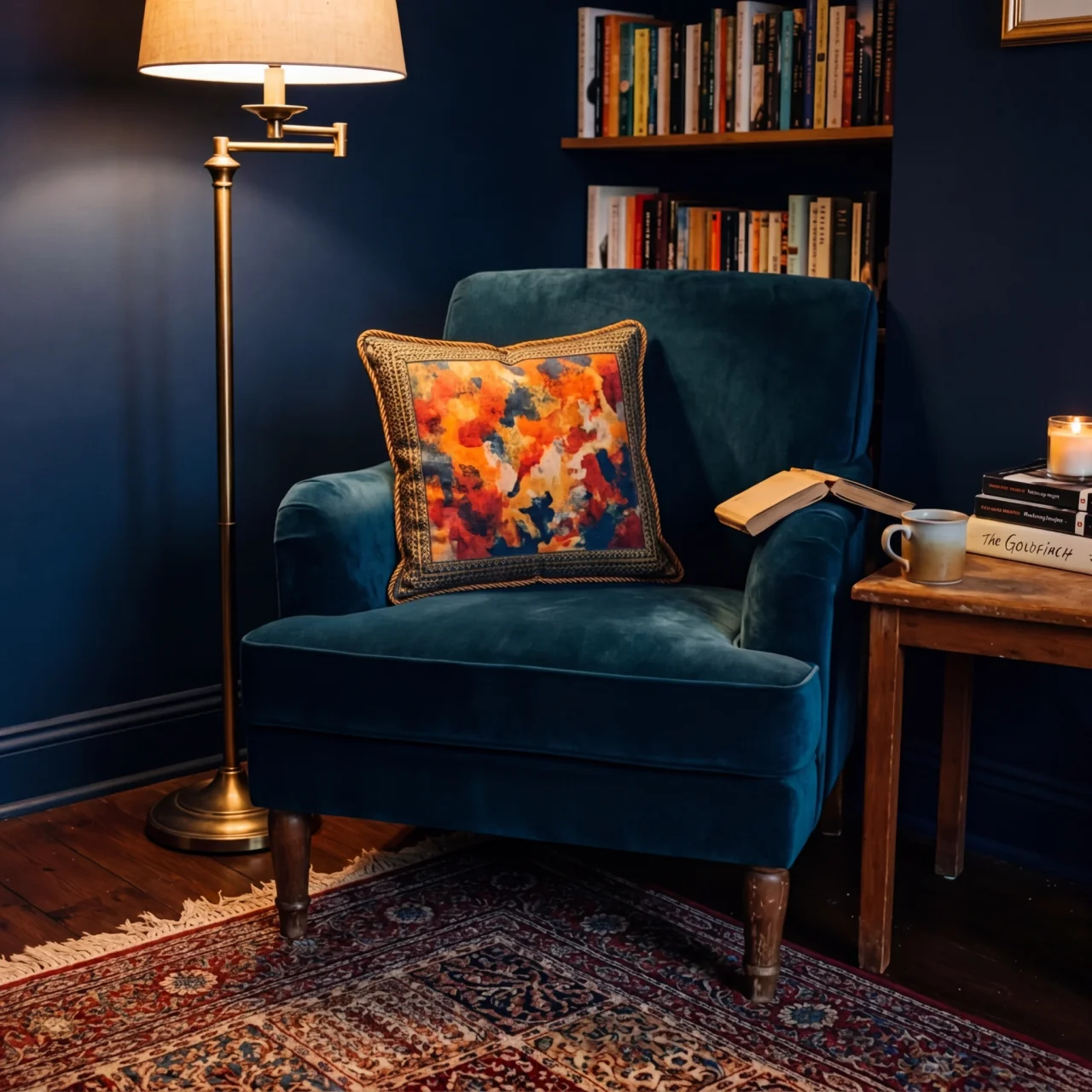
Kissen-Rand KI-Wechsler
Probiere andere Kanten, Paspeln oder Besätze an Kissen im Foto aus. Wähle Stil, Farbe und Material und beschreibe bei Bedarf die zu ändernden Kissen.

KI Kissenfransen & Rand-Tauscher
Entdecke Fransen- und Besatzideen für Kissen auf einem Innenraumfoto. Wähle Stil, Farbe, Material und Breite und prüfe die Details im zurückgegebenen Bild.
Lies den vollständigen Leitfaden
Deine Idee vorbereiten
Entdecke eine Möbelplatzierung auf einem Raumfoto. Beschreibe das Möbelstück und wähle eine Position; der Entwurf bestätigt weder Produktmaße noch tatsächliche Passform.
Bereite dein Quellenfoto und die im Formular angegebenen Referenzen vor. Die Einstellungen zeigen, was dieses Tool verändern soll.
Anfrage und Ergebnis prüfen
Prüfe Verfügbarkeit, Bildanzahl und den aktuellen Gesamtpreis vor deiner ausdrücklichen Bestätigung. Eine Registrierung allein bestätigt kein Guthaben oder kostenloses Ergebnis. Bei unklarem Ausgang prüfe den gespeicherten Status der bestehenden Anfrage, bevor du erneut bestätigst.
Frühere Originalanleitung lesen
Diese frühere Anleitung kann historische Preis-, Zeit-, Qualitäts- oder Nutzungsaussagen enthalten. Die aktuelle Beschreibung und das Tool-Formular sind maßgeblich.
How long does generation take for Furniture Visualizer?
Generation usually takes between 5 and 15 seconds.
Can I use the results commercially?
Yes, every generated image includes a full commercial usage license.
Tips for your photo
Make sure the photo is well lit and shot from a wide angle.
Remove clutter before shooting the photo for the best results.
Use re-staging mode for targeted style changes.
Frequently asked questions
Upload Photos: What image formats and resolutions does the Furniture Visualizer support for room photos?
The Furniture Visualizer accepts JPG, PNG, and HEIC files up to 10MB. For optimal clarity in your property listing, upload high-resolution real estate photos (1920x1080 pixels or higher) to ensure precise furniture placement.
Process Time: How long does the Furniture Visualizer take to stage my room photo?
The Furniture Visualizer typically stages your room in 15-30 seconds. This quick turnaround allows agents to rapidly enhance multiple property listing images for Zillow or MLS, streamlining your workflow.
Evaluate Output: What is the expected quality and resolution of the output image from the Furniture Visualizer?
The Furniture Visualizer generates high-resolution output images (up to 4K) that are ready for any property listing. The AI ensures realistic lighting and shadows, making your staged real estate photos indistinguishable from professional photography.
Optimize Results: What are best practices for uploading photos to the Furniture Visualizer to achieve optimal results?
Upload well-lit, clutter-free real estate photos with clear room boundaries for the Furniture Visualizer. Avoid blurry images. A wide-angle shot helps the AI accurately place furniture, enhancing your property listing for potential buyers on Zillow.
Regenerate Furniture: Can I modify or re-generate furniture choices after the Furniture Visualizer has processed my image?
Yes, the Furniture Visualizer allows you to easily edit or regenerate furniture selections. Simply adjust your description or choose new pieces, enabling agents to experiment with various styles until the perfect property listing visual is achieved.
Technical FAQ: Furniture Visualizer
Quick answers for optimal results
Common mistakes
5 Furniture Visualizer Mistakes Crushing Your Real Estate Photos
How to Furniture Visualizer Online for MLS and Zillow Listings
Using Low-Resolution Real Estate Photos
A blurry or pixelated room photo makes the virtual furniture look out of place and unprofessional, hurting your property listing's appeal.
Upload high-resolution real estate photos (minimum 1080p) to the Furniture Visualizer for crisp and realistic staging.
Ignoring Scale and Proportion When Furniture Visualizing
Placing furniture that's too large or too small for the room distorts the perspective and makes it difficult for potential buyers to visualize the space accurately.
Carefully adjust the size of the virtual furniture within the Furniture Visualizer to match the room's dimensions and create a balanced look for your property listing.
Choosing Furniture Styles That Clash With the Existing Decor
Incongruent furniture styles create a jarring visual experience and detract from the overall appeal of the property listing on Zillow and other platforms.
Select furniture styles within the Furniture Visualizer that complement the existing architectural features and color palette of the room for a cohesive and inviting look.
Overcrowding the Room with Too Much Virtual Furniture
A cluttered room feels smaller and less appealing, making it harder for potential buyers to imagine themselves living in the space. This negatively impacts your real estate photos.
Use the Furniture Visualizer to strategically place only essential pieces of furniture, leaving enough open space to create a sense of spaciousness and flow in your property listing.
Forgetting to Adjust Lighting and Shadows for Realism
Mismatched lighting between the real estate photo and the virtual furniture makes the staging look artificial and unprofessional, reducing engagement on MLS and Zillow.
Utilize the Furniture Visualizer's lighting and shadow adjustment tools to seamlessly blend the virtual furniture with the existing lighting conditions in the room, creating a realistic and inviting atmosphere for your agent's listing.
Stunning Furniture Visualizer Results: See Your Space Transformed
Upload your real estate photos and see furniture placement in seconds
Your workflow
Transform Your Property Listing: 5 Steps with a Furniture Visualizer
How to Furniture Visualizer Online for Real Estate Photos and Enhanced Property Listings
Upload Your Real Estate Photo
Upload a high-quality real estate photo of the room you want to stage with the Furniture Visualizer. Ensure good lighting and clear angles for optimal results, which will help agents attract more buyers on Zillow and other MLS platforms.
Use a wide-angle lens for your real estate photos to capture the entire room, allowing for more accurate furniture placement with the Furniture Visualizer.
Select and Customize Furniture
Browse our extensive catalog of furniture options within the Furniture Visualizer. Choose pieces that match the style and dimensions of your desired furniture. Customize colors and materials to perfectly match your vision for the property listing.
Use the Furniture Visualizer's search filters to quickly find furniture pieces that complement the existing style of the room. Experiment with different styles to showcase the room's versatility for potential buyers.
Place and Adjust Furniture
Drag and drop the selected furniture into the real estate photo using the Furniture Visualizer. Adjust the size, rotation, and placement of each piece to create a realistic and appealing staging. Pay attention to scale and perspective to ensure a natural look for your property listing.
Utilize the Furniture Visualizer's layering tools to position furniture correctly in relation to other objects in the room. Use shadows and highlights to enhance the realism of the staged furniture.
Review and Refine
Carefully review the staged room using the Furniture Visualizer. Make any necessary adjustments to furniture placement, size, or style. Ensure that the final result is visually appealing and accurately represents the potential of the space for your MLS listing.
Get a second opinion on your staged room from a colleague or friend. Fresh eyes can often spot areas for improvement and help you create a more compelling property listing using the Furniture Visualizer.
Download and Publish to MLS
Download the enhanced real estate photo from the Furniture Visualizer. Use this photo in your property listing on MLS, Zillow, and other real estate platforms to attract more potential buyers. Showcase the full potential of the property with beautifully staged furniture.
Use high-resolution images when publishing your property listing to ensure that the staged furniture looks its best. Highlight the key features of the staged room in your property description to maximize buyer interest.
Use cases
Property Listings for Furniture Visualizer
Social Media Marketing & Instagram Inserate
Architektur- & Umbau-Präsentationen
Furniture Visualizer — Technical Specifications
1. Upload your property photo.
2. Choose the interior style or room type you want.
3. Click Generate and get your result in seconds.
Expert guide
5 Pro Tips: Transform Real Estate Photos with a Furniture Visualizer
How to Get the Most Realistic Results from Your Online Furniture Visualizer
Upload High-Quality Real Estate Photos for Optimal Furniture Placement
Upload clear, well-lit real estate photos for the best Furniture Visualizer results. A high-resolution image ensures accurate furniture scaling and placement, enhancing your property listing on Zillow and attracting potential buyers. This improves the virtual staging process for your agent.
Adjust Furniture Visualizer Settings for Precise Room Staging
Fine-tune the Furniture Visualizer settings to match your room's dimensions and lighting. Accurate adjustments will ensure the virtual furniture looks realistic and properly scaled within the real estate photos, providing a compelling visual for potential buyers viewing your property listing.
Enhance Property Listings with Realistic Furniture Visualizations
To achieve the best results, use furniture descriptions that are as detailed as possible. The Furniture Visualizer uses this information to create accurate and appealing virtual staging, improving your property listing's appeal and potentially increasing its value for MLS listings.
Leverage the Furniture Visualizer for Professional Real Estate Marketing
Use the Furniture Visualizer to create multiple staging options for a single property listing. This allows real estate agents to showcase various design possibilities to potential buyers, increasing engagement and interest in the property. Convert leads faster with better visuals.
How it works
3 Professional Steps for AI Furniture Visualizer
How to use a furniture visualizer online for free to stage real estate photos
Upload Your High-Resolution Room Photo
Upload your property listing or real estate photos to our Furniture Visualizer. Ensure the space is clear to allow the AI to accurately calculate scale, lighting, and perspective for your Zillow listing.
Describe Your Desired Furniture Pieces
Specify the sofa, table, or bed style you want to visualize. Our AI Furniture Visualizer instantly places items into the room, ensuring they meet MLS compliance and professional home staging standards.
Download Your Staged Property Image
Convert your empty space into a fully furnished room. Download the high-resolution image to enhance your broker marketing materials and help potential buyers visualize their future home through realistic furniture placement.
What you can do
7 Advanced Furniture Visualizer Capabilities for Real Estate Agents
High-Fidelity Visualizer Renders
Enhance real estate photos with stunningly realistic virtual furniture. Stage properties instantly, ensuring every Zillow listing captivates potential buyers and agents.
Instant Furniture Staging
Transform empty rooms in seconds, eliminating long waits for traditional staging. Upload property listing photos and visualize furniture rapidly for quick agent approvals.
Versatile Output Formats
Convert visualized spaces into various image formats for seamless MLS and Zillow integration. Upload real estate photos and export high-quality visuals effortlessly.
Tailored Furniture Selection
Stage any property listing by describing or referencing specific furniture styles. Enhance agent presentations with custom-fitted sofas, tables, or beds for perfect fit.
AI-Powered Placement Accuracy
Accurately place virtual furniture, ensuring perfect scale and perspective in real estate photos. Convert empty spaces into furnished homes with intelligent visualizer AI.
Professional Real Estate Tool
Empower agents to elevate property listings and impress clients on Zillow. Stage homes effectively, making every real estate photo a compelling sales asset.
Learn how real estate agents use Furniture Visualizer to enhance property listings