
フェンス&ゲートデザインビジュアライザー
- 写真
- 選択内容
- 画像
できることを見る
あなたのような写真から得られた実際の結果です。
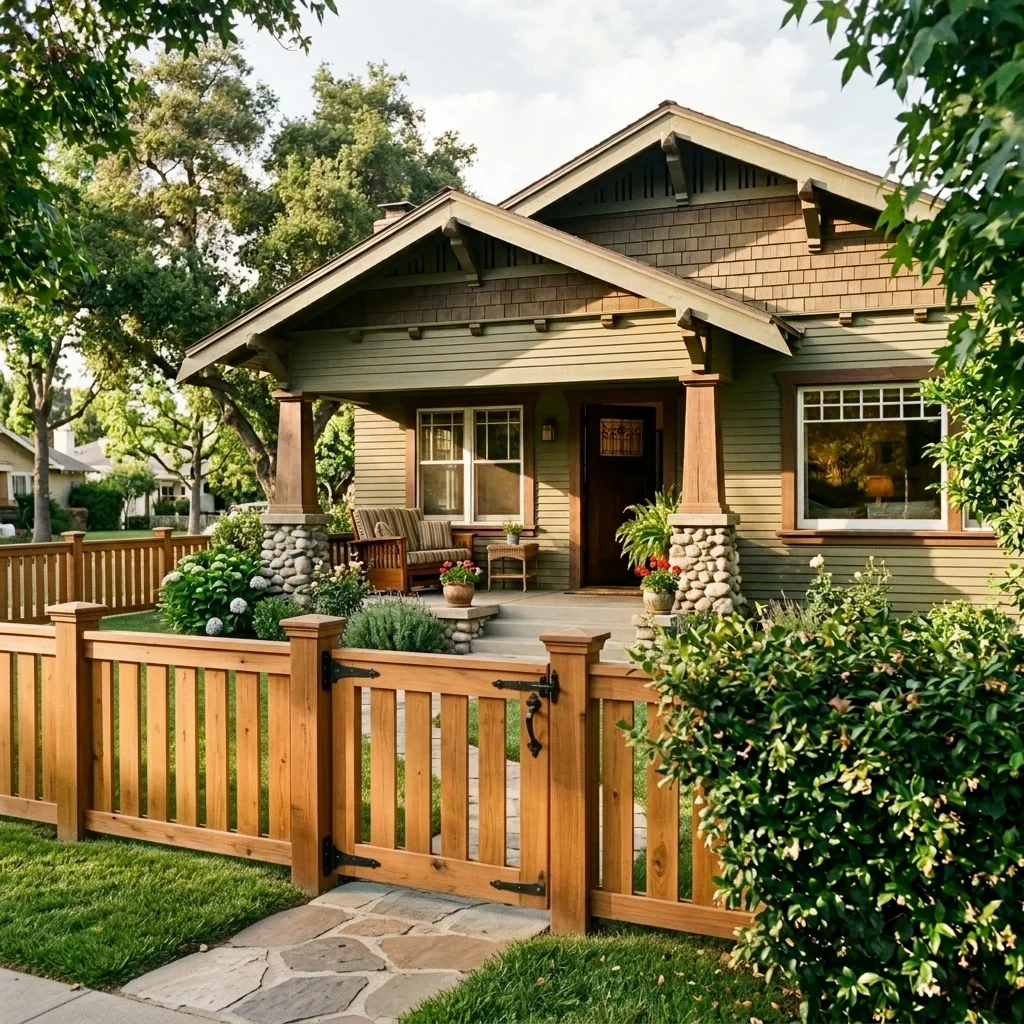
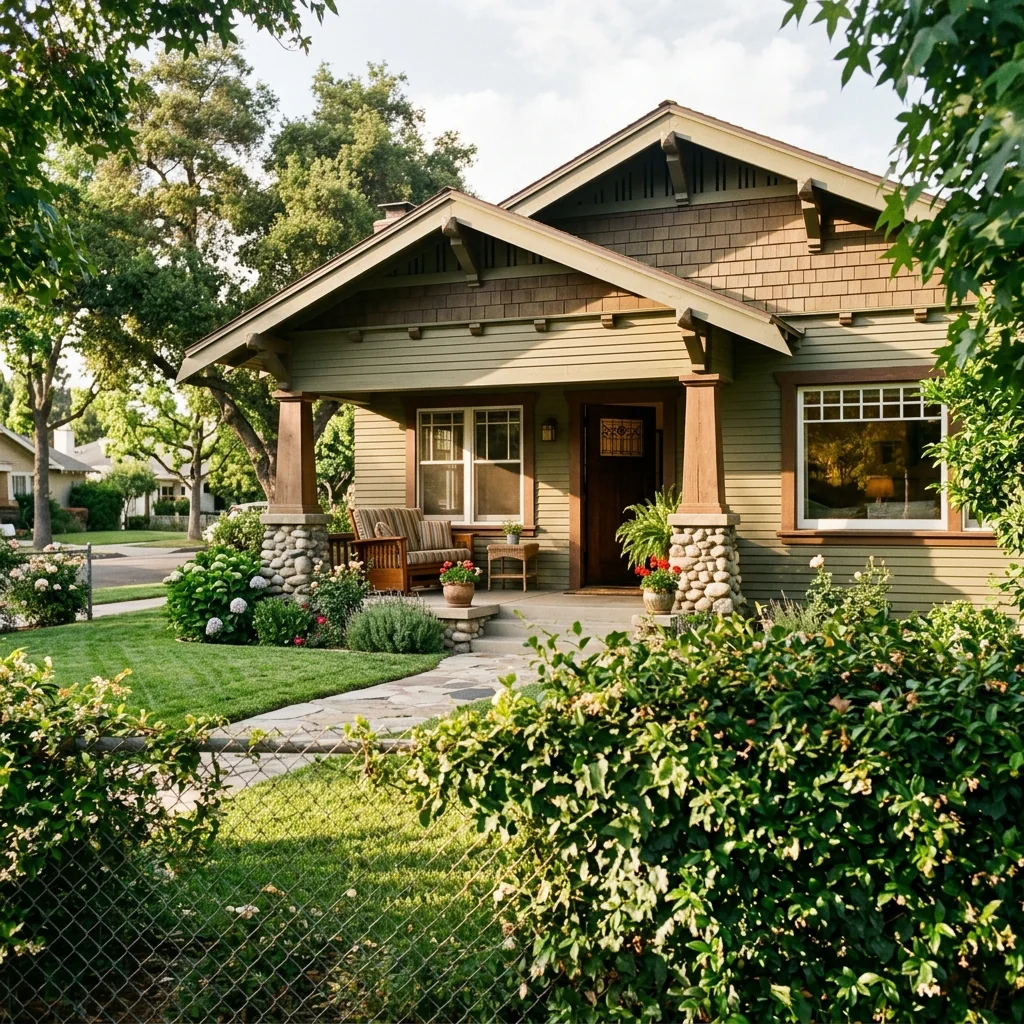

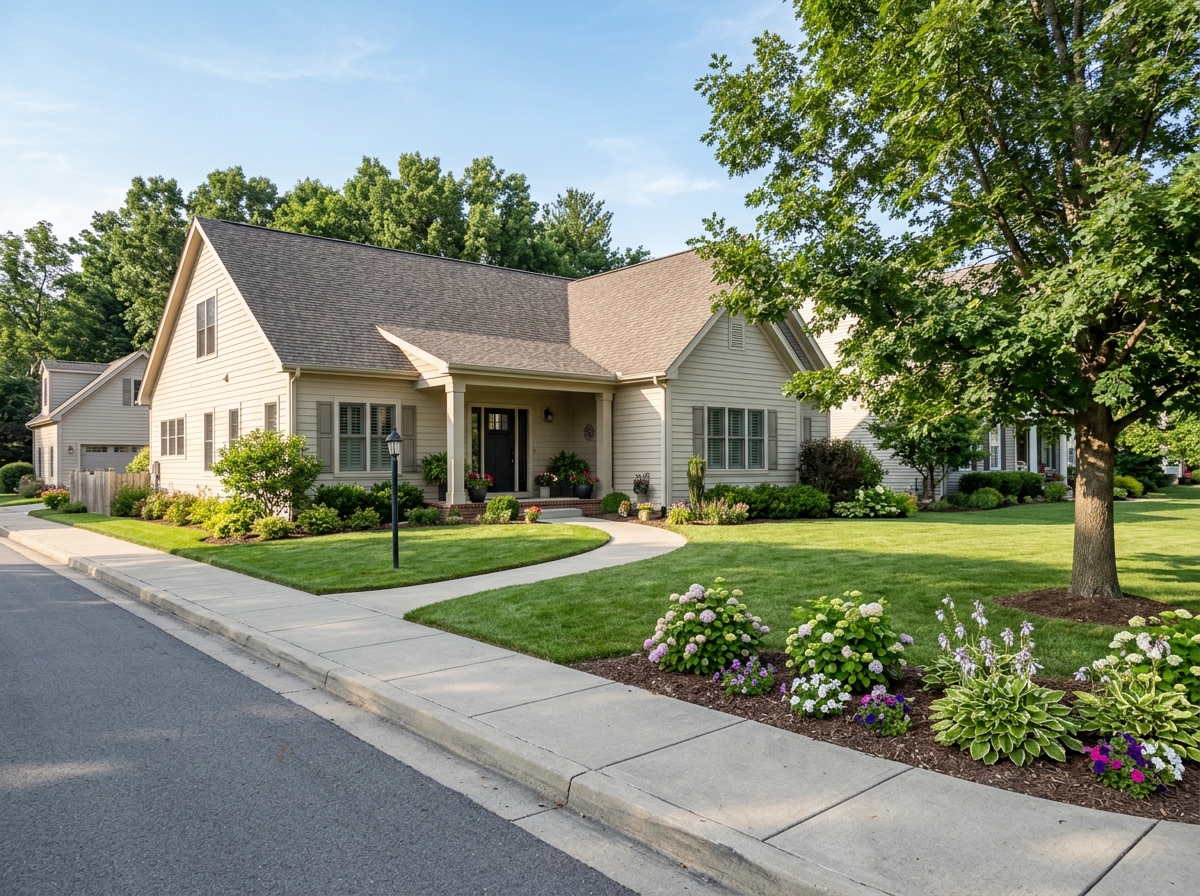

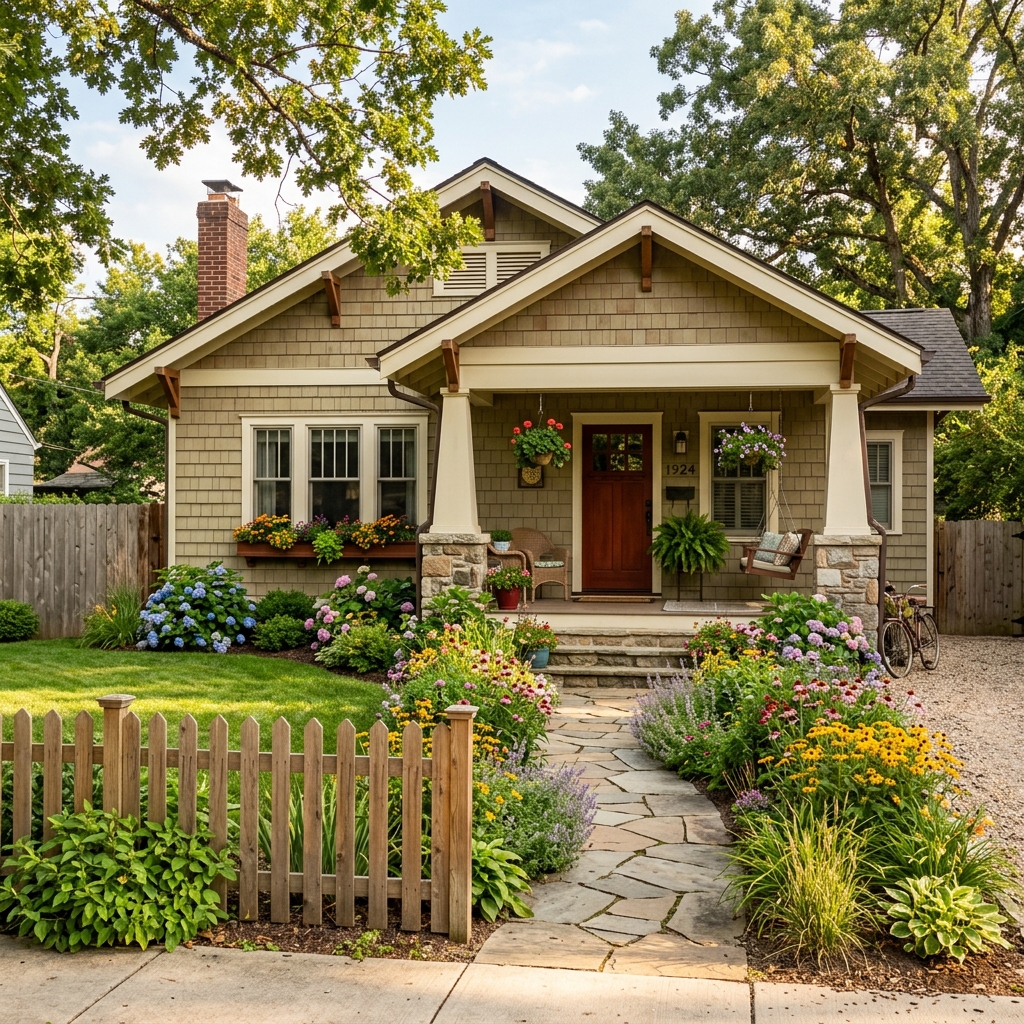
使い方
- 1写真をアップロードしてください
- 2設定を選択してください
- 3画像
より良い結果のためのヒント
明るく、はっきりした写真
自然光と広角が最適な結果につながります。
全体が見えるようにしてください
変更したいものをすべて、しっかり画面内に入れてください。
いくつかのバリエーションを試す
決める前に、さまざまなオプションを比較できます。
よくある質問
画像を商用利用できますか?
はい。商用利用を含め、あらゆる目的で画像を使用できます。
元の写真は変わりますか?
いいえ。元の画像は変更されず、いつでもダウンロードできます。
結果が気に入らない場合は?
別のスタイルや設定を試すか、短い指示で結果を調整してください。
さらに見る
すべてのツール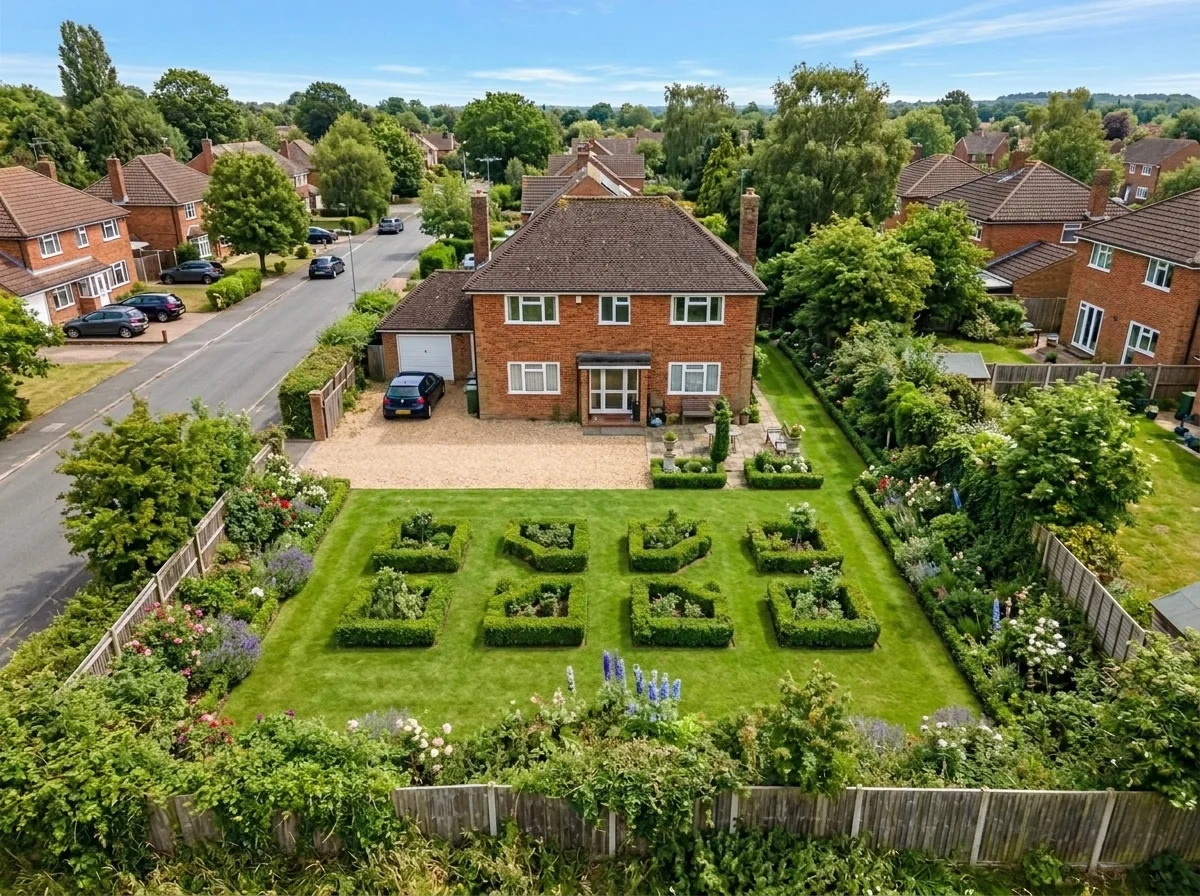
空撮の外構・植栽強化
ドローンや空撮の物件写真に写る、手入れされていない裸地や物足りない外構を変えます。青々とした芝生、プール、整った庭園、植栽帯、きれいな私道を追加し、上空から見える状態で表現します。造園業者を使わずに、屋外空間の可能性を買い手に示せます。

AI 枕ボーダー交換
リアルエステート写真の装飾用クッションの縁、トリム、パイピングを即座に変化させます。このAIツールにより、デザイナーやステージャーはさまざまなスタイル、色、素材を視覚化でき、物理的な変更なしに室内の美しさを高められます。

AI 枕フリンジ & トリムスワッパー
室内写真で、新しい装飾用クッションのフリンジやトリムのスタイルを手軽に視覚化できます。このAIツールにより、デザイナーやステージャーは既存のクッションのディテールを差し替え、物理的な変更なしに新しい見た目をすぐに確認できます。
完全ガイドを読む
How long does generation take for Fence & Gate Design Visualizer?
Generation usually takes between 5 and 15 seconds.
Can I use the results commercially?
Yes, every generated image includes a full commercial usage license.
Tips for your photo
Make sure the photo is well lit and shot from a wide angle.
Remove clutter before shooting the photo for the best results.
Use re-staging mode for targeted style changes.
Frequently asked questions
What are the recommended input photo formats and resolutions for the Fence & Gate Design Visualizer?
Upload JPG or PNG images with a minimum resolution of 1920x1080 pixels for best results. Enhance your property listing by providing high-resolution real estate photos, ensuring the Fence & Gate Design Visualizer accurately stages new designs. This optimizes the final visual output.
How long does it typically take to process a fence and gate design visualization?
Convert your real estate photos into visualized designs typically within 10-30 seconds. Processing time may vary slightly based on image complexity and server load. Agents can quickly generate multiple options for their Zillow listings.
What is the expected output quality of the visualized fence and gate designs?
Stage high-definition fence and gate designs that seamlessly integrate with your existing property photos. The output is optimized for clarity and realism, perfect for enhancing MLS and Zillow property listings and attracting potential buyers.
What are the best tips for achieving the most realistic fence and gate design visualizations?
Transform your real estate photos by ensuring clear, well-lit images with a straight-on view of the fence line. Upload photos free of obstructions to allow the Fence & Gate Design Visualizer to accurately stage your chosen designs.
Can I regenerate or modify a fence and gate design visualization after it's been created?
Enhance your property listing by easily regenerating designs. Upload the same photo and select new fence styles or materials to visualize different options. Agents can quickly iterate until the perfect design is achieved for their property.
Technical FAQ: Fence & Gate Design Visualizer
Quick answers for optimal results
Common mistakes
5 Common Fence & Gate Design Visualizer Mistakes to Avoid for Stunning Real Estate Photos
Avoid these pitfalls to maximize your property listing's appeal using a fence and gate design visualizer online
Uploading Low-Resolution Real Estate Photos to the Fence & Gate Design Visualizer
Using blurry or pixelated images makes it difficult to accurately visualize fence and gate designs on your property. This impacts the overall realism and appeal for potential buyers browsing MLS or Zillow.
Transform your property listing by uploading high-resolution real estate photos (minimum 1200px wide) to the Fence & Gate Design Visualizer for clear and detailed visualizations. Consider using a professional real estate photographer.
Ignoring Property Lines and Existing Landscaping When Using the Fence & Gate Design Visualizer
Overlooking property boundaries and existing landscaping elements (trees, shrubs) leads to unrealistic fence and gate placements. This creates a misleading impression for potential buyers.
Carefully consider property lines and integrate existing landscaping into your Fence & Gate Design Visualizer project. Use the tool to visualize how the new fence and gate will complement the existing landscape.
Choosing Fence & Gate Styles That Don't Match the Property's Architecture with the Visualizer
Selecting a fence and gate style that clashes with the home's architectural style diminishes curb appeal. A mismatch can negatively impact the perceived value of the property on Zillow and other platforms.
Experiment with different fence and gate styles within the Fence & Gate Design Visualizer to find a design that complements the architectural style of the property. Consider classic styles for traditional homes and modern styles for contemporary properties.
Failing to Consider Local Regulations and HOA Guidelines Before Visualizing Fence & Gate Designs
Designing a fence or gate that violates local regulations or HOA guidelines results in wasted time and effort. It can also lead to costly removal or modification requirements.
Research local regulations and HOA guidelines regarding fence height, materials, and design restrictions before using the Fence & Gate Design Visualizer. Use the tool to visualize compliant designs.
Not Experimenting with Different Materials and Colors in the Fence & Gate Design Visualizer
Sticking to a single material or color limits the potential for creating a visually appealing and unique fence and gate design. This can make your property listing less attractive compared to others on MLS.
Explore the full range of materials and colors available in the Fence & Gate Design Visualizer. Experiment with different combinations to find a design that enhances the property's curb appeal and complements the existing color palette.
What Your Fence & Gate Design Visualizer Results Will Look Like
Upload your photo to see your dream fence and gate come to life
Your workflow
4 Steps to Transform Your Real Estate Photos with a Fence & Gate Design Visualizer
How to use a Fence & Gate Design Visualizer online for stunning property listings
Upload Your Real Estate Photo
Upload a clear photo of the property where you want to visualize the fence and gate. Ensure the area where the fence will be placed is clearly visible in the real estate photos. This helps the Fence & Gate Design Visualizer accurately place the new design.
Use high-resolution real estate photos for the best results. Clear photos allow the Fence & Gate Design Visualizer to accurately detect edges and surfaces for a realistic visualization.
Design Your Fence & Gate
Choose from various fence styles, materials, and gate designs available in the Fence & Gate Design Visualizer. Experiment with different combinations to find the perfect look for your property listing. Consider how the fence and gate design complements the existing architecture in your real estate photos.
Utilize the Fence & Gate Design Visualizer's customization options to adjust colors, textures, and sizes. This allows you to create a truly unique fence and gate design that enhances your property listing on Zillow and MLS.
Visualize and Adjust
Use the Fence & Gate Design Visualizer to see how the selected fence and gate design looks on your property. Adjust the placement, scale, and perspective to ensure a seamless integration with the existing real estate photos. Pay close attention to how the new fence and gate enhance the overall curb appeal for potential buyers viewing the property listing.
Take advantage of the Fence & Gate Design Visualizer's preview feature to view the design from different angles. Fine-tune the placement and appearance until you achieve a realistic and visually appealing result for your MLS listing.
Download and Enhance Your Property Listing
Download the enhanced real estate photo with the new fence and gate design. Use this image to update your property listing on MLS, Zillow, and other platforms. Showcase the potential of the property with a visually appealing fence and gate design created with the Fence & Gate Design Visualizer, attracting more potential buyers and boosting your agent profile.
Include a note in your property listing description highlighting the use of the Fence & Gate Design Visualizer to showcase potential improvements. This demonstrates your commitment to providing a comprehensive and visually appealing presentation for potential buyers.
Use cases
Property Listings for Fence & Gate Design Visualizer
Social Media Marketing & Instagram Inserate
Architektur- & Umbau-Präsentationen
Fence & Gate Design Visualizer — Technical Specifications
1. Upload your property photo.
2. Choose the interior style or room type you want.
3. Click Generate and get your result in seconds.
Expert guide
5 Pro Tips: Transform Your Property Listing with a Fence & Gate Design Visualizer
How to Get the Best Fence & Gate Design Visualizer Results Online for Real Estate Photos
Prepare High-Quality Real Estate Photos for Optimal Visualization
Upload clear, well-lit real estate photos to the Fence & Gate Design Visualizer for the most accurate and realistic results. Avoid blurry or low-resolution images, as these can negatively impact the AI's ability to accurately render fence and gate designs onto your property listing.Adjust Fence & Gate Design Visualizer Settings for Perfect Property Integration
Experiment with the Fence & Gate Design Visualizer's settings to fine-tune the appearance of your fence and gate. Adjust scale, perspective, and material options until the design seamlessly integrates with your property's existing features for compelling MLS and Zillow listings.Achieve Best Results: Focus on Key Property Features with the Visualizer
When using the Fence & Gate Design Visualizer, concentrate on highlighting key property features. Frame the photo to showcase the areas where the fence and gate will have the most impact, creating an attractive visual for potential buyers viewing your property listing.Enhance Agent Marketing: Use the Visualizer for Professional Presentations
Leverage the Fence & Gate Design Visualizer to create professional presentations for your clients. Showcase different fence and gate options on their property, helping them visualize potential improvements and increasing the appeal of their real estate photos on Zillow and other platforms.How it works
3 Pro Steps for Fence & Gate Design Visualizer
How to fence & gate design visualizer online for free to boost property listing curb appeal
Upload Your Exterior Property Photos
Upload high-resolution real estate photos of your property exterior to our AI engine to begin the fence & gate design visualizer process for better Zillow and MLS listing visibility.
Select Custom Fence Styles
Choose from privacy fence, vinyl, or wrought iron styles to instantly transform your yard with our fence & gate design visualizer, ensuring a professional home staging look for every broker.
Download High-Res Visualizer Renders
Enhance your property listing by downloading high-resolution renders from the fence & gate design visualizer that show potential buyers exactly how new boundaries look, ready for any agent or broker platform.
What you can do
Transform Your Property: 6 Key Features of Our Fence & Gate Design Visualizer
High-Fidelity Fence Visualizations
Enhance your property listing with realistic fence and gate designs. Generate stunning real estate photos that captivate potential buyers on Zillow and MLS.
Instant Design Generation
Upload your property photo and instantly visualize diverse fence & gate styles. Agents can quickly stage properties, saving valuable time in the fast-paced real estate market.
Versatile Export Options
Convert your visualized fence and gate designs into various image formats. Easily share enhanced property listing visuals with clients, teams, or for MLS submissions.
Extensive Design Customization
Transform your property by customizing fence materials, heights, and gate styles. Stage unique designs that perfectly match your real estate photos and client preferences.
AI-Powered Placement Accuracy
Our Fence & Gate Design Visualizer uses AI to precisely integrate designs onto your real estate photos. Ensure seamless, professional-grade results for every property listing.
Agent & Builder Solutions
Enhance your professional toolkit for real estate agents and builders. Stage properties with new fence & gate designs, boosting appeal for Zillow and MLS listings.
How to use a Fence & Gate Design Visualizer online for stunning real estate photos.