
AI-visualisering av møbelstoff
- Foto
- Valgene dine
- Bildet ditt
Se hva som er mulig
Virkelige resultater fra bilder som dine.
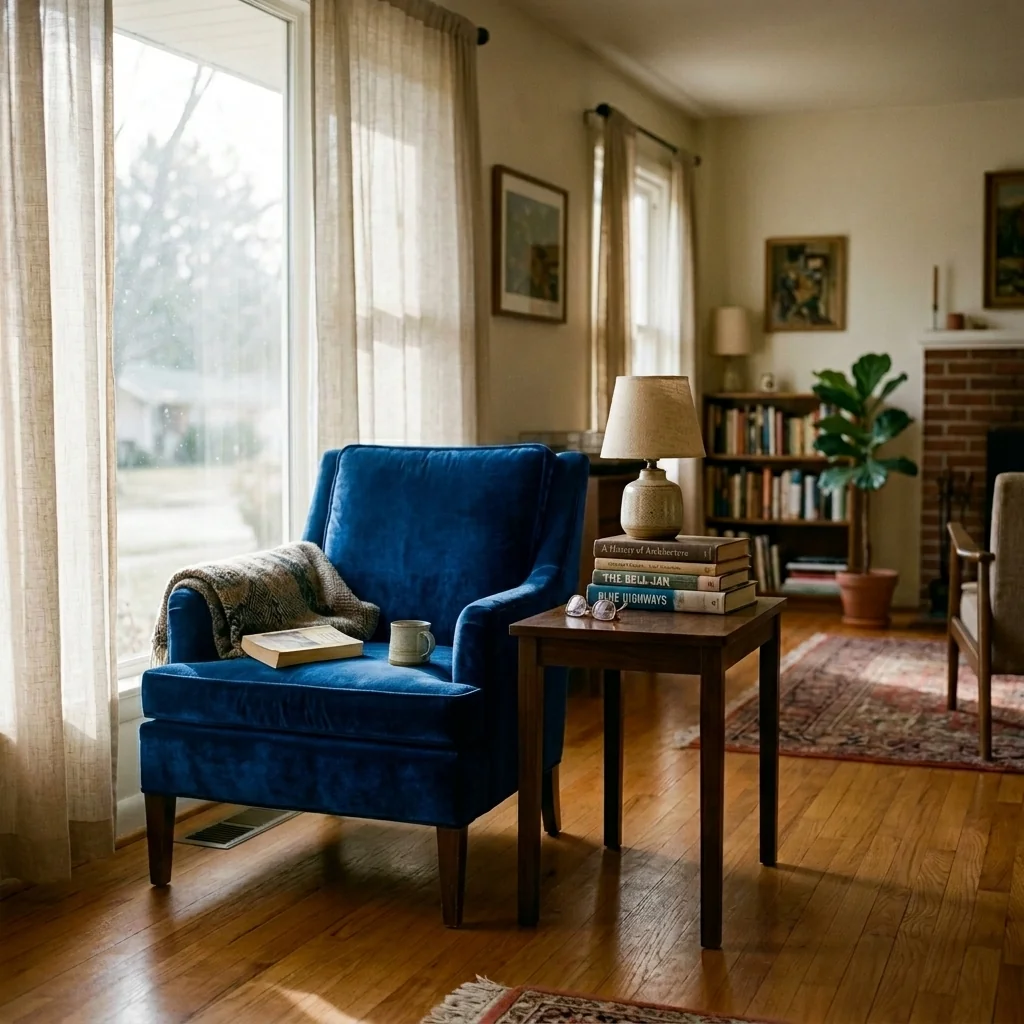
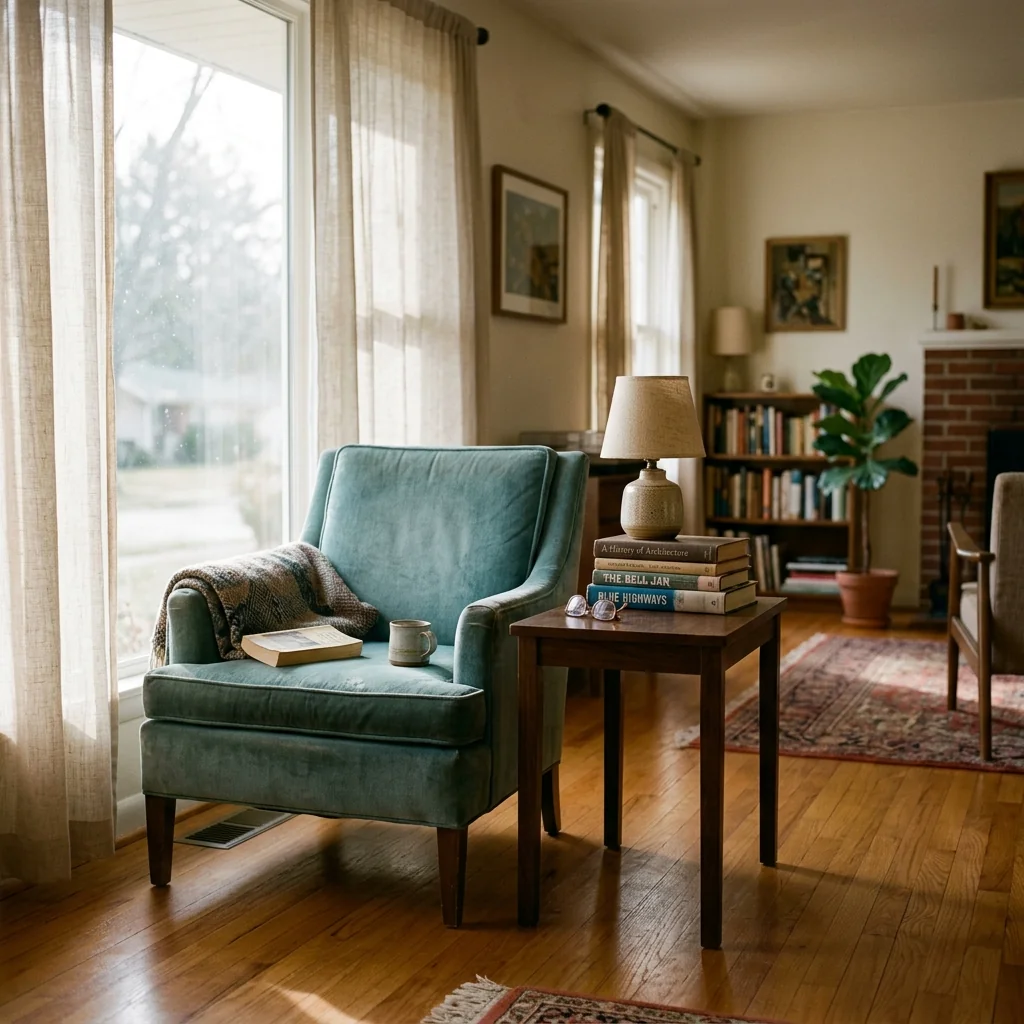

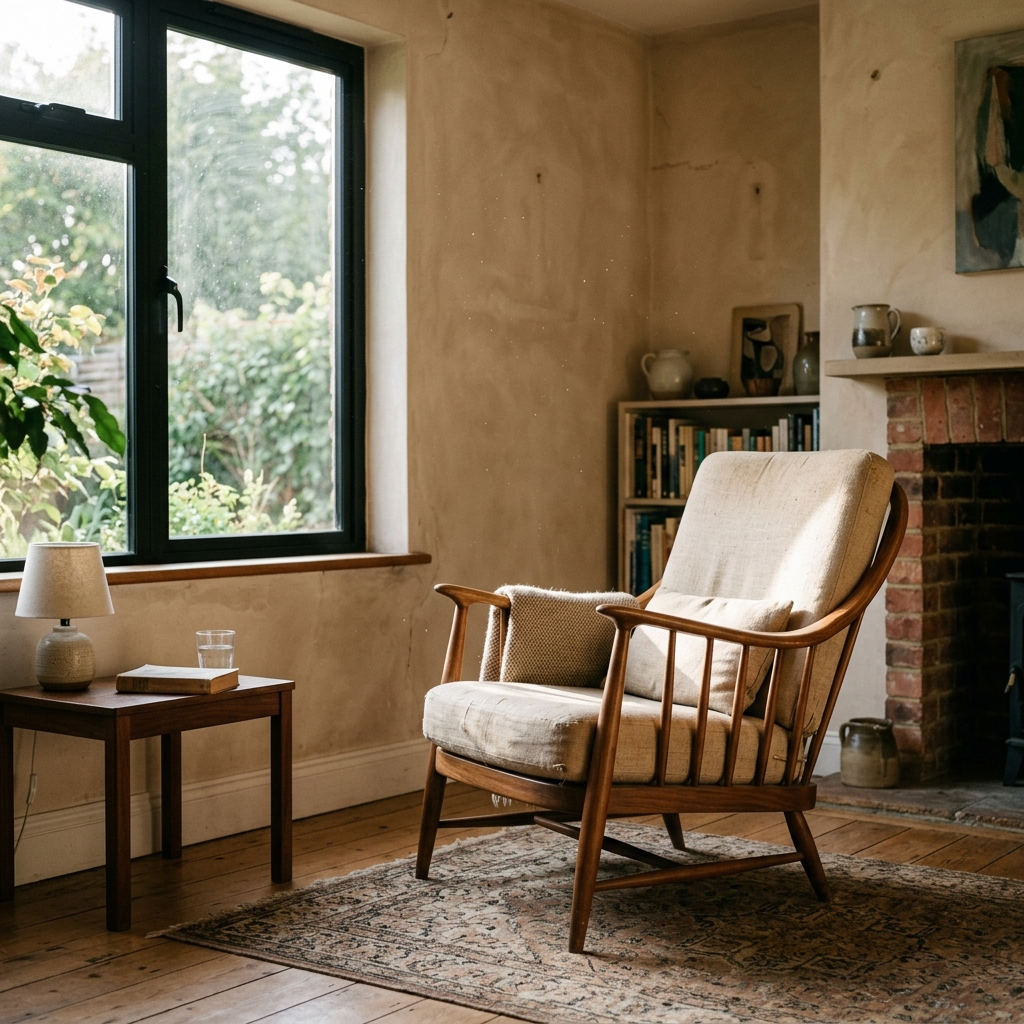

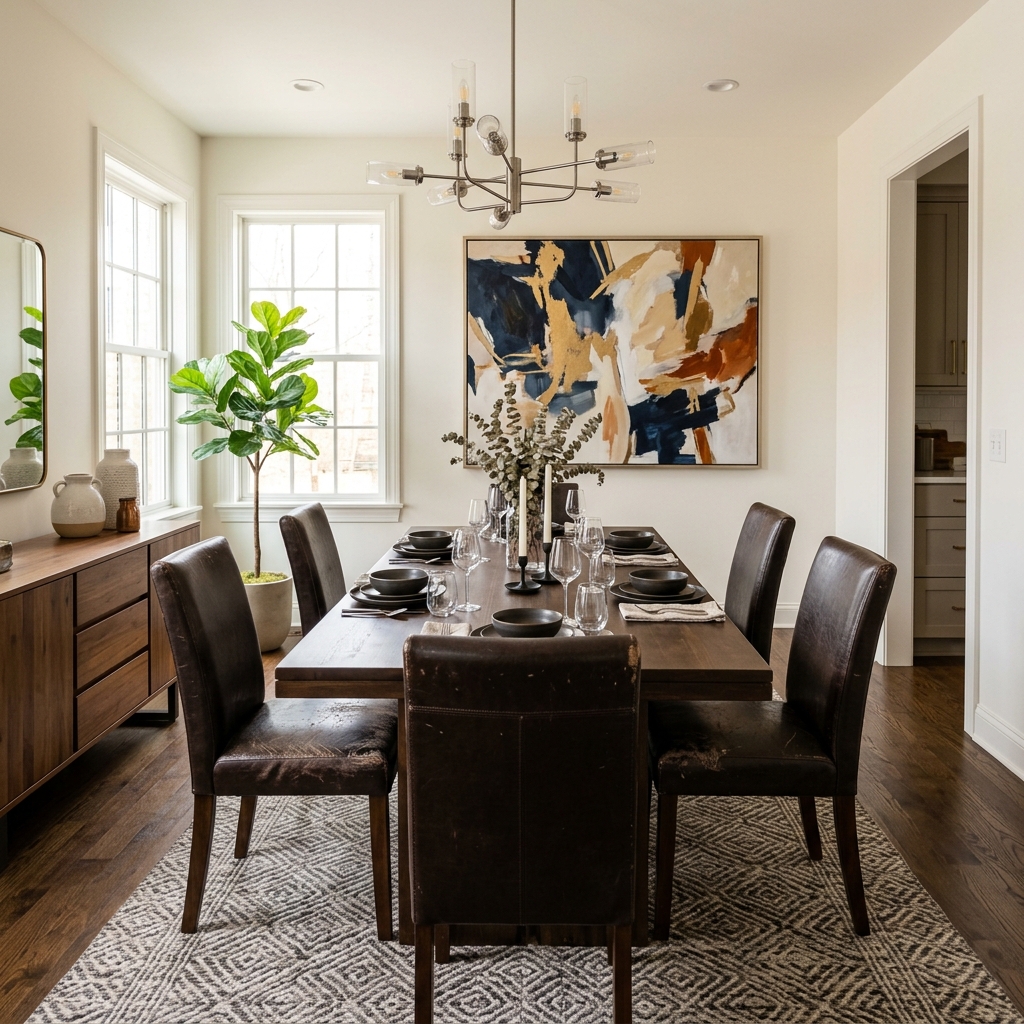
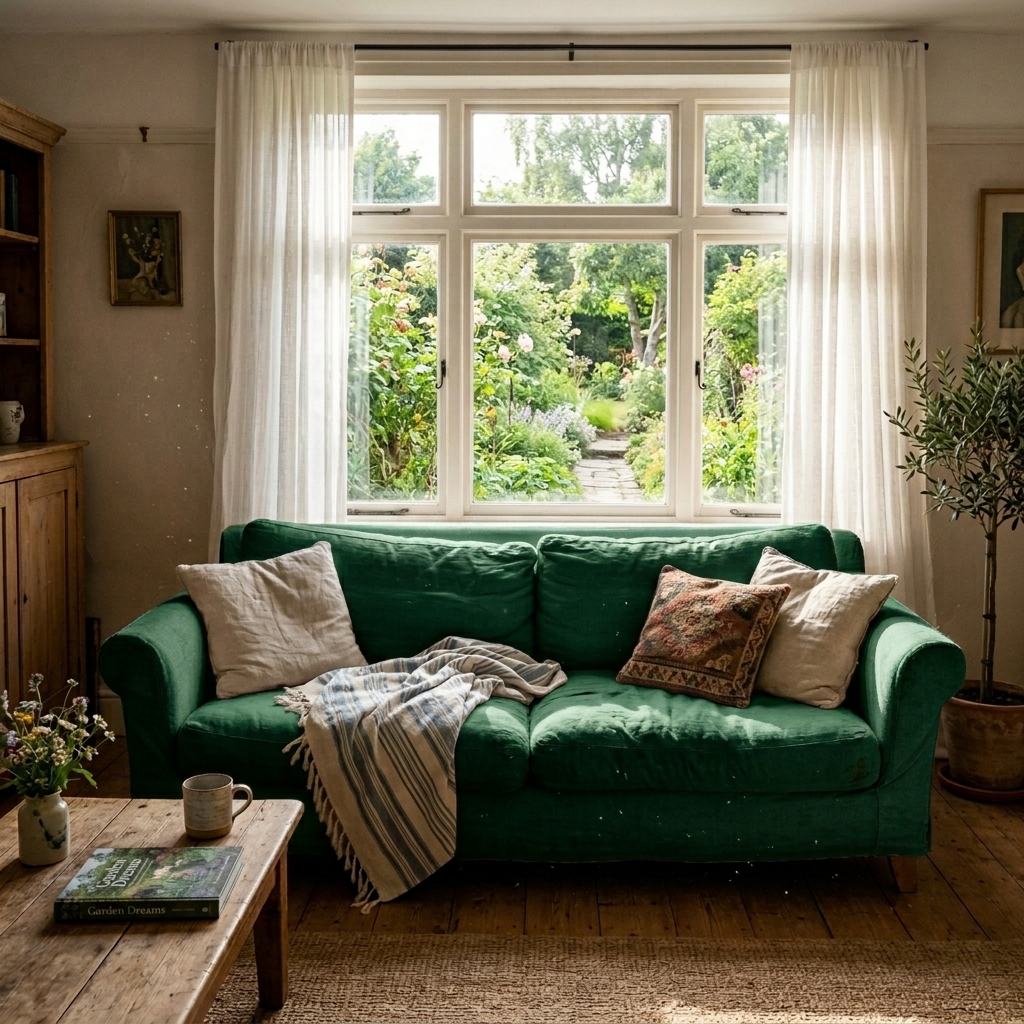
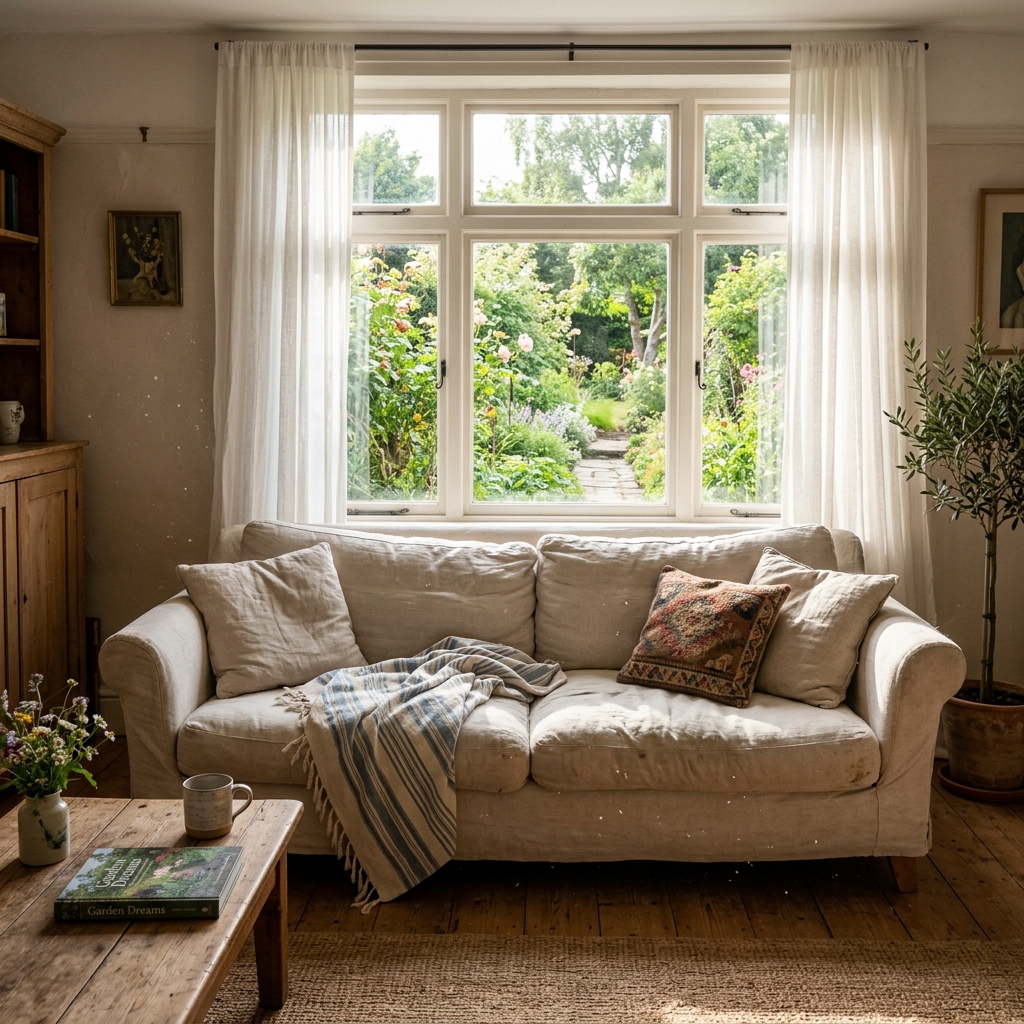
Slik fungerer det
- 1Last opp fotoet ditt
- 2Velg innstillingene dine
- 3Bildet ditt
Tips for et godt resultat
Lyst, klart foto
Dagslys og vidvinkel gir det beste resultatet.
Vis hele området
Ha med alt du vil endre helt i bildet.
Prøv flere varianter
Sammenlign ulike alternativer før du bestemmer deg.
Ofte stilte spørsmål
Kan jeg bruke bildene kommersielt?
Ja. Du kan bruke bildene dine til ethvert formål, inkludert kommersiell bruk.
Endres originalbildet mitt?
Nei. Originalen din forblir uendret, og du kan laste den ned når som helst.
Hva hvis jeg ikke liker resultatet?
Prøv en annen stil eller innstilling, eller finjuster resultatet med en kort instruksjon.
Fortsett å utforske
Alle verktøy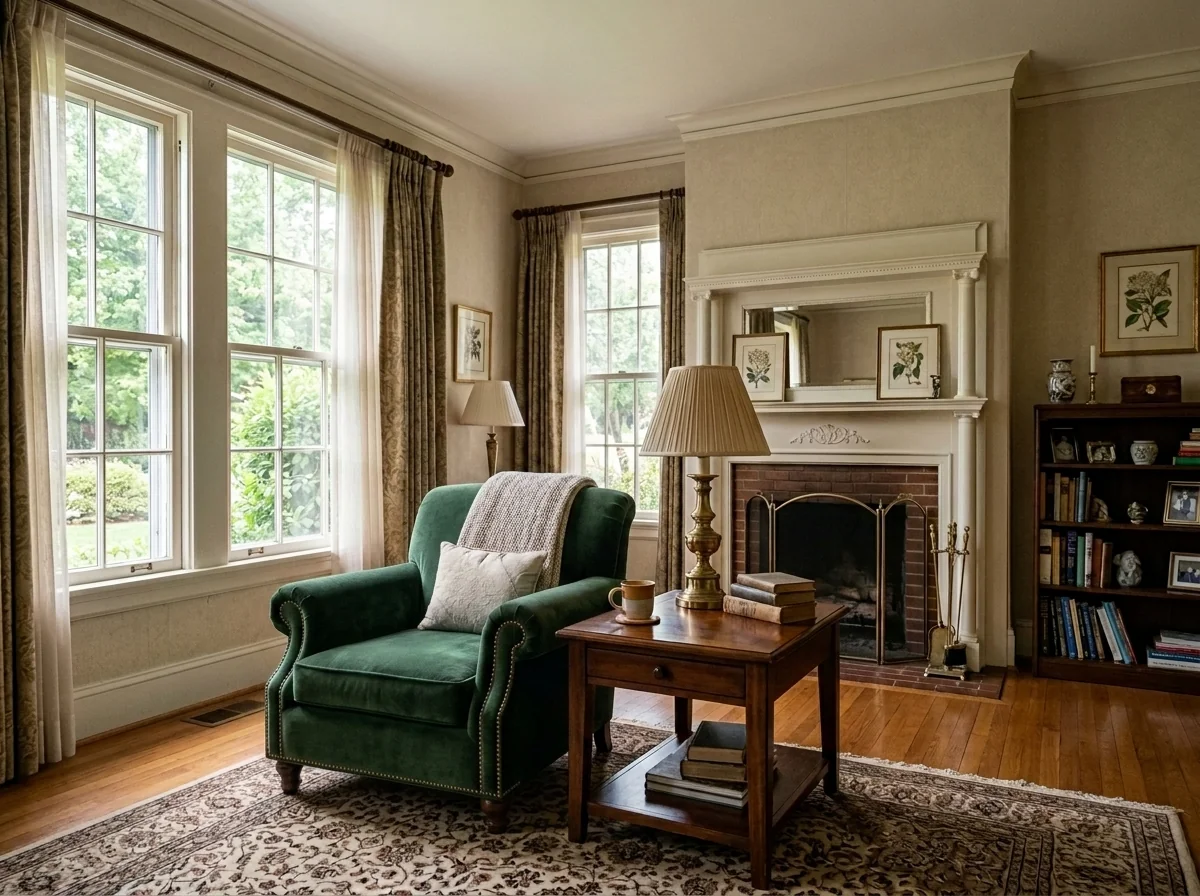
AI-stolpute-skifter
Visualiser umiddelbart nye trekkmuligheter for lenestoler i bildene dine. Endre stoff, farger og mønstre som fløyel, lær eller boucle for å matche enhver interiørstil perfekt. Ideelt for eiendomsmeglere og interiørdesignere som vil vise potensielle forvandlinger.
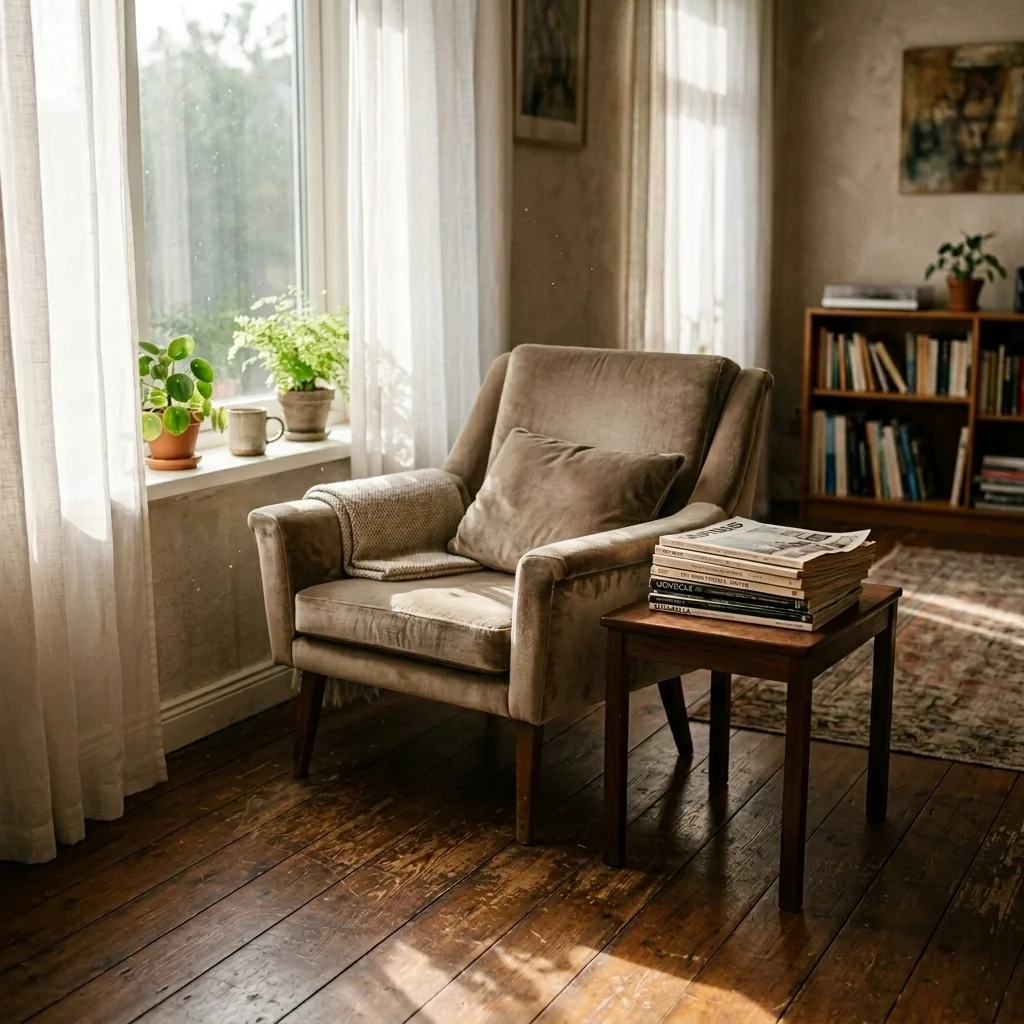
AI-møbeltrekk-skifter
Forvandle møbelbildene dine med AI! Endre enkelt trekkmaterialet for å vise ulike stiler og appellere til et bredere spekter av kjøpere. Perfekt for virtuell møblering og interiørskisser.
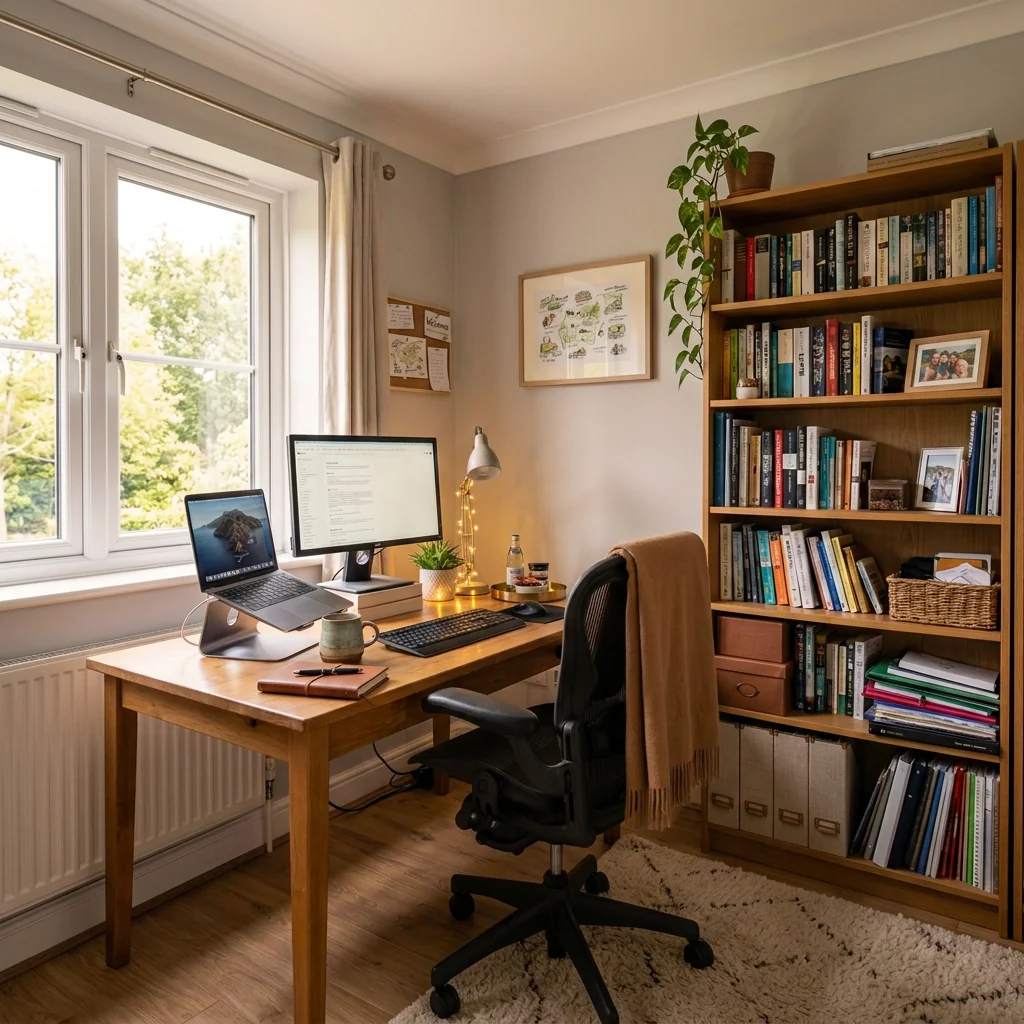
Fotooptimalisering for Airbnb-annonsen
Forvandle et hvilket som helst eiendomsbilde til et 5-stjerners Airbnb-klart annonsebilde. Legg til koselige gjestefasiliteter, varm belysning og gjestfrihetsdetaljer som øker bestillingene på Airbnb, VRBO og Booking.com.
Les hele guiden
How long does generation take for AI Upholstery Visualizer?
Generation usually takes between 5 and 15 seconds.
Can I use the results commercially?
Yes, every generated image includes a full commercial usage license.
Tips for your photo
Make sure the photo is well lit and shot from a wide angle.
Remove clutter before shooting the photo for the best results.
Use re-staging mode for targeted style changes.
Frequently asked questions
What are the recommended input image formats and resolutions for the AI Upholstery Visualizer?
Upload high-resolution JPG, PNG, or WEBP images (1000px-4000px on the longest side) of your furniture. This ensures the AI Upholstery Visualizer accurately detects and applies fabric textures for realistic property listing enhancements.
How long does the AI Upholstery Visualizer take to process an image?
Convert your furniture photos in seconds. The AI Upholstery Visualizer typically processes images within 5-15 seconds, allowing agents to quickly generate multiple design options for a single property listing.
What is the typical output quality from the AI Upholstery Visualizer?
Enhance your real estate photos with stunning, high-definition outputs. The AI Upholstery Visualizer delivers realistic fabric previews, perfect for showcasing potential upgrades on Zillow or MLS listings.
What are the best practices for achieving optimal results with the AI Upholstery Visualizer?
Stage your furniture in good lighting with clear angles. Upload images where the furniture is prominent and unobstructed. This helps the AI Upholstery Visualizer accurately apply textures, transforming your property listing visuals.
Can I re-generate or modify an upholstery visualization after initial processing?
Yes, you can easily re-generate. Simply select new fabric options or adjust parameters within the AI Upholstery Visualizer interface. This allows for quick iterations to find the perfect look for your property.
5 Technical FAQs: AI Upholstery Visualizer
Optimizing Your AI Upholstery Visualizer Results Online
Common mistakes
5 AI Upholstery Visualizer Mistakes That Kill Your Real Estate Photos
How to Use AI Upholstery Visualizer Online for Stunning Property Listings
Using Low-Resolution Photos
AI Upholstery Visualizer relies on image quality. Blurry or pixelated photos produce inaccurate and unrealistic upholstery previews, negatively impacting your real estate photos for MLS and Zillow.
Upload high-resolution real estate photos (minimum 1000px wide) for optimal AI Upholstery Visualizer results. Ensure proper lighting and clear focus on the furniture.
Ignoring Furniture Angles and Perspective
Submitting photos with extreme angles or distorted perspective confuses the AI Upholstery Visualizer, leading to skewed fabric application and unrealistic results for your property listing.
Capture furniture photos from a straight-on perspective, minimizing distortion. Use wide-angle lenses sparingly and correct perspective in post-processing before using the AI Upholstery Visualizer.
Overlooking Lighting and Shadows
Inconsistent or harsh lighting creates shadows that the AI Upholstery Visualizer interprets as part of the original fabric, leading to inaccurate color and texture rendering in your real estate photos.
Use consistent, diffused lighting when photographing furniture. Minimize shadows and adjust brightness/contrast in your photo editing software before using the AI Upholstery Visualizer to ensure accurate material rendering for your Zillow listing.
Choosing Unrealistic Fabric Options
Selecting fabrics that are completely out of character with the furniture style or the overall room decor makes the AI-generated upholstery look unnatural and detracts from your property listing's appeal.
Choose fabric options that complement the furniture's style and the room's aesthetic. Consider textures, patterns, and colors that enhance the overall visual appeal of the real estate photos.
Not Fine-Tuning the AI Output
Relying solely on the AI Upholstery Visualizer's initial output without making adjustments can result in imperfections or inconsistencies that negatively affect the final presentation for your MLS listing.
Carefully review the AI-generated upholstery preview and use the tool's editing features to refine the fabric placement, adjust colors, and correct any minor imperfections to achieve a polished and professional look for your agent profile.
3 Stunning AI Upholstery Visualizer Results for Real Estate Listings
How to use an AI upholstery visualizer online for free to boost Zillow engagement
Your workflow
Transform Your Real Estate Photos: 5 Tips for Using an AI Upholstery Visualizer
How to Upholstery Visualizer Online for Stunning Property Listings
Upload
Upload a high-quality real estate photo of the furniture you want to visualize with new upholstery using our AI Upholstery Visualizer.
Ensure the photo is well-lit and the furniture is clearly visible for the best AI results. Focus on capturing the furniture's shape and details for accurate upholstery mapping.
Customize
Select from a wide range of fabric colors, textures, and patterns within the AI Upholstery Visualizer to see how they look on your furniture. Experiment with different styles to match the property's aesthetic.
Use the color palette tool to precisely match existing decor or create a bold new look. Consider the lighting in the real estate photos when choosing fabric colors.
Visualize
Let the AI Upholstery Visualizer instantly generate a realistic preview of your furniture with the selected upholstery. Review the image to ensure it meets your expectations for the property listing.
Zoom in on the image to inspect the details of the upholstery texture and how it drapes on the furniture. Adjust the settings if needed for optimal realism.
Enhance & Download
Enhance the final image with our built-in editing tools to adjust brightness, contrast, and sharpness. Download the enhanced image for use in your MLS listing, Zillow ad, or other marketing materials.
Use subtle enhancements to avoid making the image look artificial. Focus on making the upholstery look inviting and appealing to potential buyers.
Use cases
Real Estate Listings for AI Upholstery Visualizer
Social Media Marketing & Instagram Inserate
Architektur- & Umbau-Präsentationen
AI Upholstery Visualizer — Technical Specifications
1. Upload your property photo.
2. Choose the interior style or room type you want.
3. Click Generate and get your result in seconds.
Expert guide
4 Pro Tips for the AI Upholstery Visualizer
How to use the best upholstery visualizer online for free in 2025
3 Steps to Prepare Photos for the AI Upholstery Visualizer
Upload high-resolution **JPG or PNG files** (minimum 2000px) so the AI detects fine fabric grain. Position the sofa or chair in natural light to avoid deep shadows. Capture images from a **45-degree angle** to provide the AI Upholstery Visualizer with depth data for realistic texture mapping on your property listing.
5 Ways to Select Styles in the AI Upholstery Visualizer
Choose fabric textures that contrast with the flooring to make the furniture stand out in **Zillow and MLS photos**. Select velvet for luxury listings or linen for a modern aesthetic. Use the **color picker** to match existing decor, ensuring your virtual reupholstery aligns with a professional home staging strategy.
4 Methods to Optimize AI Upholstery Visualizer Quality
Clear all clutter like throw pillows or blankets from the seat before snapping the photo. Ensure the **furniture frame is clearly visible** so the AI accurately identifies fabric boundaries. Avoid low-light shots; instead, use **bright, even lighting** to help the AI Upholstery Visualizer render realistic fabric sheen and depth.
3 Tips for Professional AI Upholstery Visualizer Deployment
Download high-definition renders to include as 'Virtual Renovation' slides in your **MLS property listing**. Share these previews with buyers to help them visualize potential without expensive physical staging. Always **disclose AI enhancements** to maintain broker transparency while showcasing the home's maximum potential to active Zillow users.
How it works
3 Simple Steps to Master the AI Upholstery Visualizer
How to use an AI upholstery visualizer online for free to boost property listing engagement
Upload Your Furniture Photos Instantly
Upload a high-resolution photo of your sofa, chair, or loveseat to the AI Upholstery Visualizer to begin the virtual staging process for your next Zillow or MLS property listing.
Select New Fabric and Textures
Transform dated furniture by choosing from hundreds of premium fabrics and colors; our AI upholstery visualizer accurately renders realistic textures to help real estate agents and brokers sell homes faster.
Download Your High-Res Previews
Enhance your real estate photos by downloading the final reupholstered render in high-definition, providing a cost-effective home staging alternative that answers how much virtual staging costs for professional property managers.
What you can do
Advanced AI Upholstery Visualizer Capabilities
High-Fidelity Upholstery Previews
Generate stunning, photorealistic visualizations of updated furniture, ensuring your real estate photos captivate potential buyers with impeccable design.
Instant AI Visualization
Transform your furniture photos in seconds with the AI Upholstery Visualizer, providing rapid design iterations for agents and homeowners without delay.
Versatile Output Formats
Download your AI Upholstery Visualizer results in various high-resolution image formats, perfect for MLS uploads, Zillow listings, or client presentations.
Extensive Fabric Customization
Explore countless fabric types, colors, and patterns using the AI Upholstery Visualizer, allowing precise tailoring to any interior design aesthetic for your property.
Accurate AI Texture Mapping
Experience unparalleled accuracy as the AI Upholstery Visualizer seamlessly applies textures and patterns, maintaining realistic shadows and contours on every piece of furniture.
Enhance Property Listings
Empower real estate agents to stage properties virtually, presenting updated furniture options to buyers and boosting engagement on any property listing.
Pro-level tools at your fingertips for property staging