
Redigeringsverktøy for rombelysning og atmosfære
- Foto
- Valgene dine
- Bildet ditt
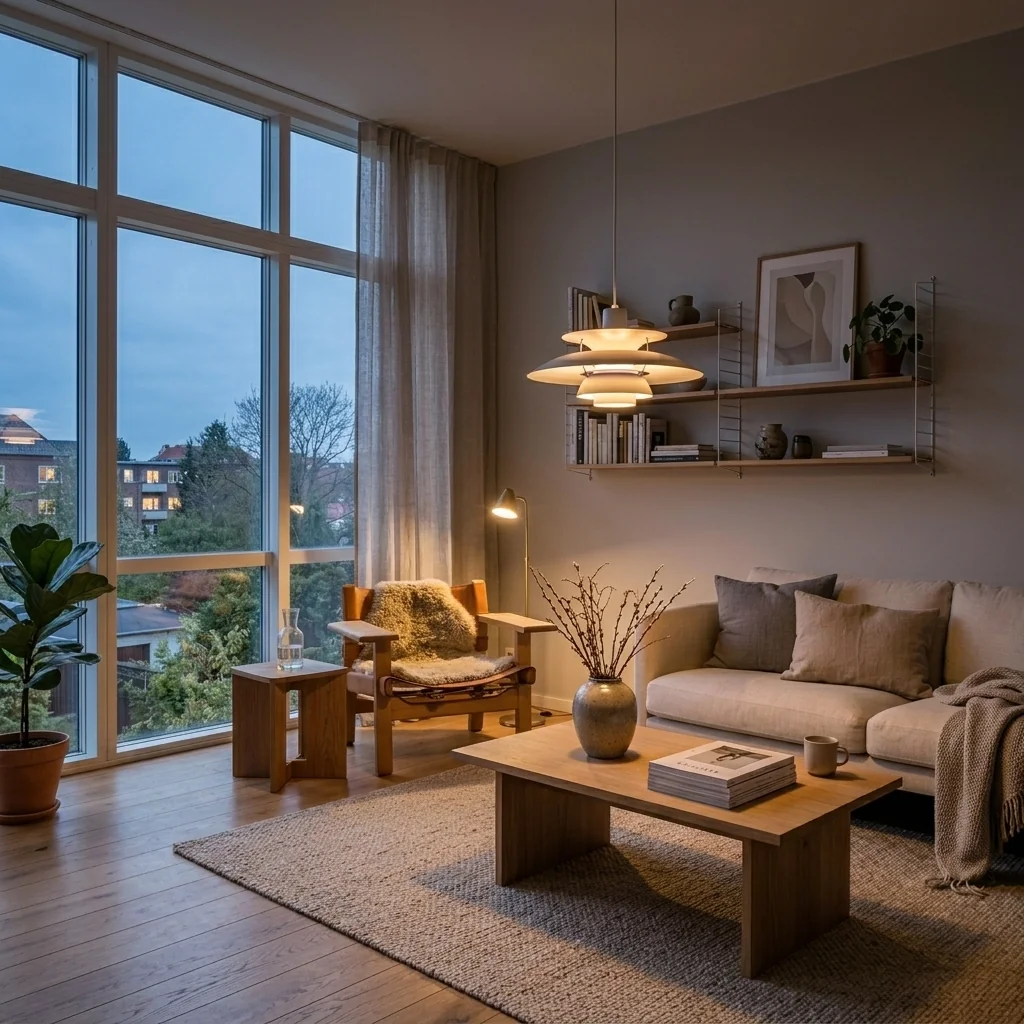
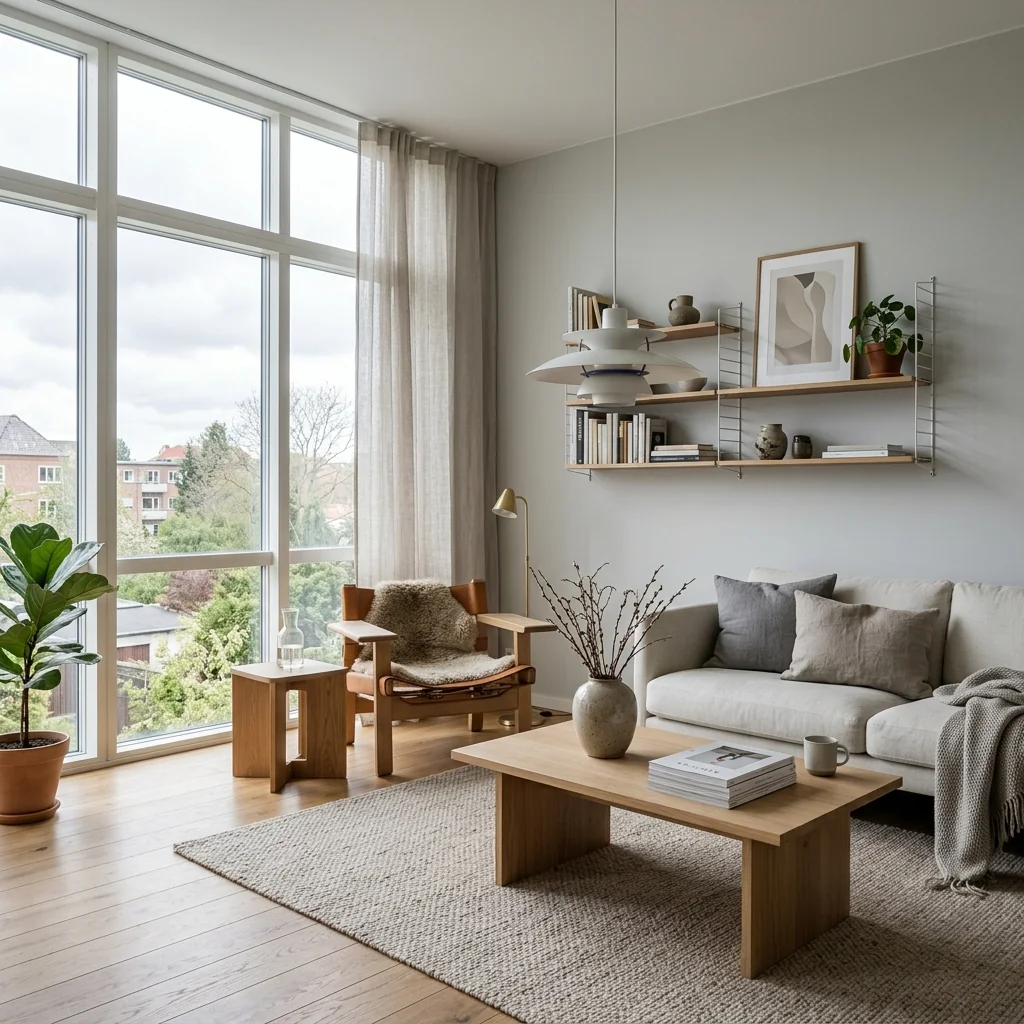
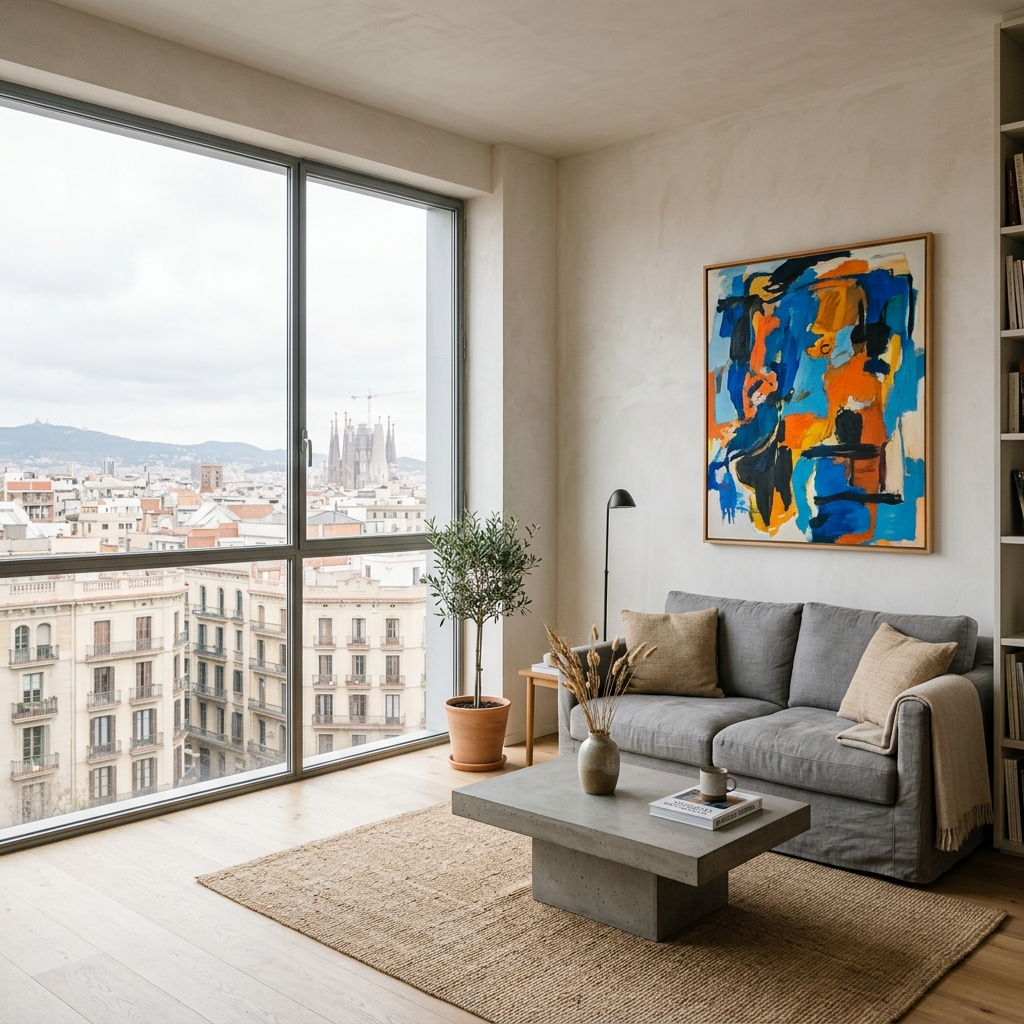
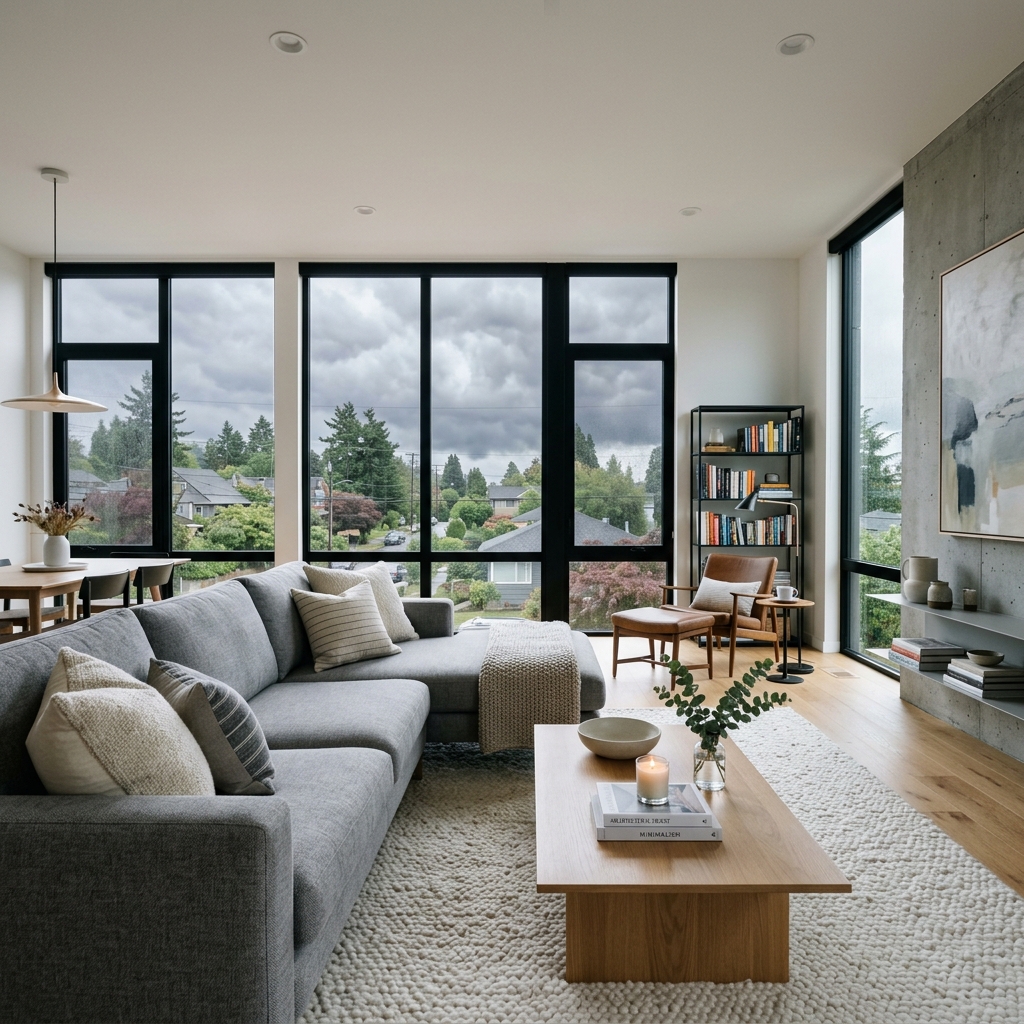
Se hva som er mulig
Virkelige resultater fra bilder som dine.


Slik fungerer det
- 1Last opp fotoet ditt
- 2Velg innstillingene dine
- 3Bildet ditt
Tips for et godt resultat
Lyst, klart foto
Dagslys og vidvinkel gir det beste resultatet.
Vis hele området
Ha med alt du vil endre helt i bildet.
Prøv flere varianter
Sammenlign ulike alternativer før du bestemmer deg.
Ofte stilte spørsmål
Kan jeg bruke bildene kommersielt?
Ja. Du kan bruke bildene dine til ethvert formål, inkludert kommersiell bruk.
Endres originalbildet mitt?
Nei. Originalen din forblir uendret, og du kan laste den ned når som helst.
Hva hvis jeg ikke liker resultatet?
Prøv en annen stil eller innstilling, eller finjuster resultatet med en kort instruksjon.
Fortsett å utforske
Alle verktøy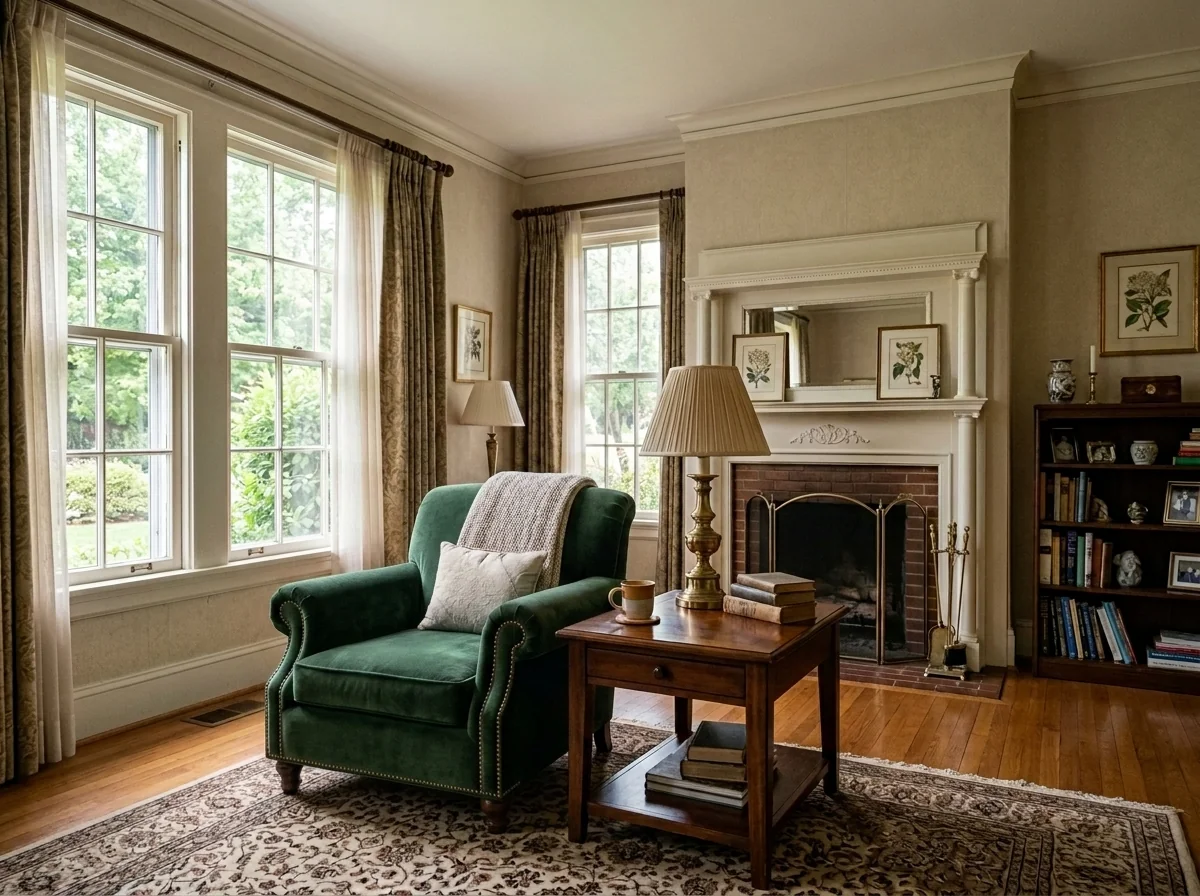
AI-stolpute-skifter
Visualiser umiddelbart nye trekkmuligheter for lenestoler i bildene dine. Endre stoff, farger og mønstre som fløyel, lær eller boucle for å matche enhver interiørstil perfekt. Ideelt for eiendomsmeglere og interiørdesignere som vil vise potensielle forvandlinger.
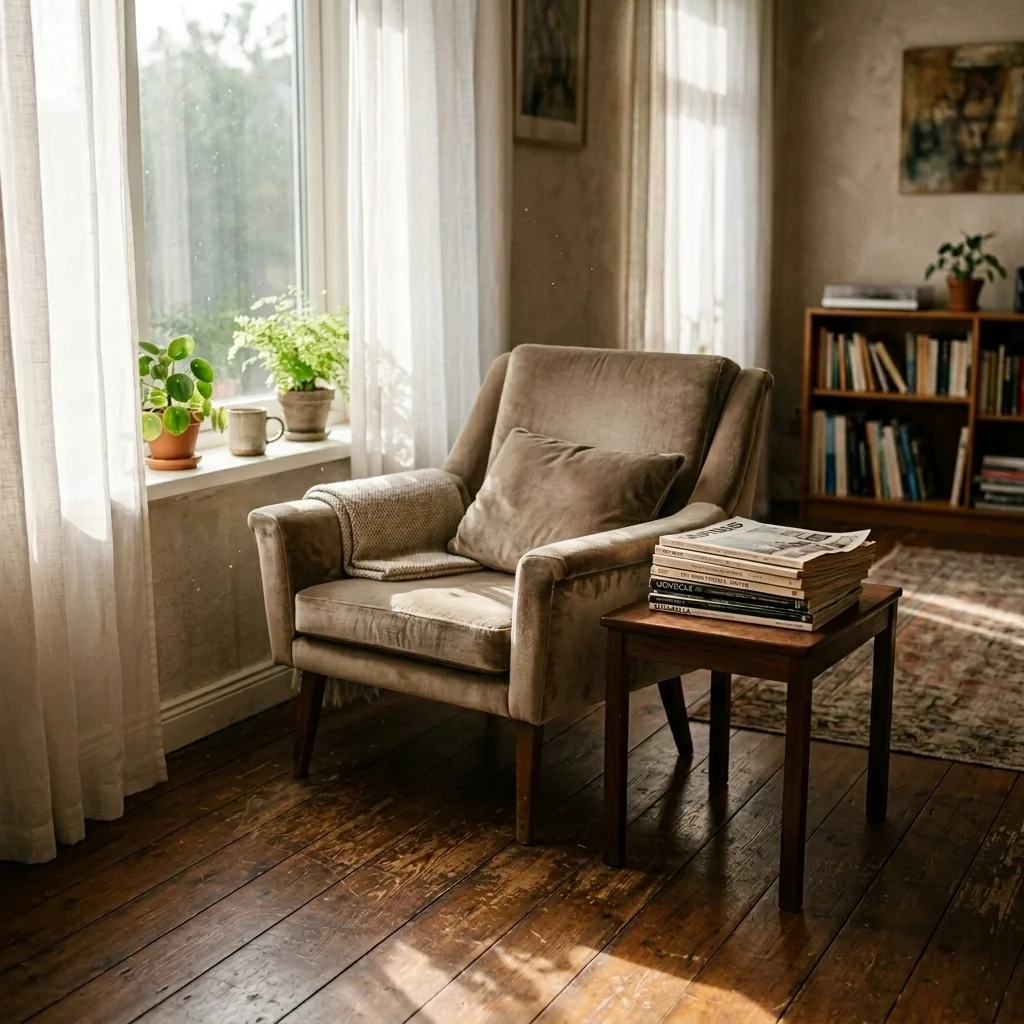
AI-møbeltrekk-skifter
Forvandle møbelbildene dine med AI! Endre enkelt trekkmaterialet for å vise ulike stiler og appellere til et bredere spekter av kjøpere. Perfekt for virtuell møblering og interiørskisser.
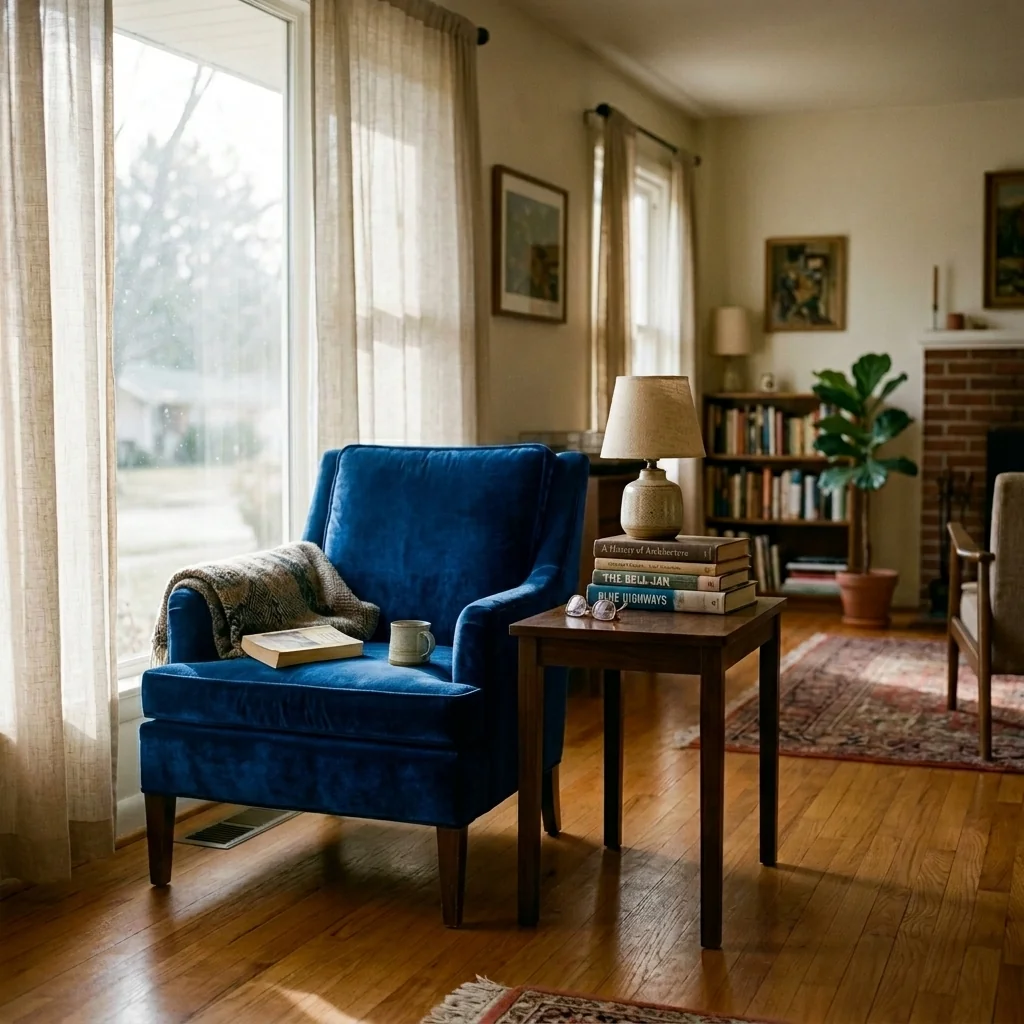
AI-visualisering av møbeltrekk
Visualiser umiddelbart hvordan et hvilket som helst møbel ser ut med ulike møbelstoffer, farger og teksturer ved hjelp av AI. Last opp et bilde av sofaen, stolen eller lenestolen din og se imponerende forhåndsvisninger av omtrekking før du bestemmer deg for et kjøp eller et oppussingsprosjekt.
Les hele guiden
How long does generation take for Room Lighting & Ambiance Editor?
Generation usually takes between 5 and 15 seconds.
Can I use the results commercially?
Yes, every generated image includes a full commercial usage license.
Tips for your photo
Make sure the photo is well lit and shot from a wide angle.
Remove clutter before shooting the photo for the best results.
Use re-staging mode for targeted style changes.
Frequently asked questions
What are the recommended input image formats and resolutions for the Room Lighting & Ambiance Editor?
Upload JPG or PNG files for the Room Lighting & Ambiance Editor. Optimal resolution is 2000-4000 pixels on the longest side to ensure high-quality output for property listings and Zillow. This allows the AI to precisely enhance lighting and ambiance in real estate photos.
What is the typical processing time for the Room Lighting & Ambiance Editor?
The Room Lighting & Ambiance Editor typically processes images in 5-15 seconds. Larger file sizes or complex lighting adjustments may slightly extend this, ensuring the AI accurately transforms your real estate photos for MLS and agent use.
What output quality can I expect from the Room Lighting & Ambiance Editor?
Expect high-resolution, photorealistic output from the Room Lighting & Ambiance Editor. The AI intelligently adjusts lighting and ambiance, delivering professional-grade real estate photos perfect for property listings, Zillow, and agent marketing materials.
How can I achieve the best results using the Room Lighting & Ambiance Editor?
For optimal results with the Room Lighting & Ambiance Editor, start with reasonably clear real estate photos. Avoid extremely blurry or underexposed images. The AI performs best when enhancing existing detail, transforming spaces effectively for any property listing.
Can I re-generate or fine-tune results after using the Room Lighting & Ambiance Editor?
Yes, after the initial processing by the Room Lighting & Ambiance Editor, you can often adjust parameters or re-upload the original to generate new variations. This allows agents to fine-tune the ambiance for different property listing platforms.
Technical FAQ: Room Lighting & Ambiance Editor
Quick answers for optimal results
Common mistakes
5 Costly Room Lighting & Ambiance Editor Mistakes That Kill Real Estate Sales
How to Use a Room Lighting & Ambiance Editor Online for Stunning Property Listings
Ignoring Natural Light Balance
Over-reliance on the Room Lighting & Ambiance Editor without considering existing natural light can lead to unrealistic and artificial-looking real estate photos, deterring potential buyers.
Before using the Room Lighting & Ambiance Editor, assess the natural light in the original photo. Adjust the AI settings to complement and enhance, not replace, the existing light for a more authentic look in your property listing.
Oversaturating Colors with the Ambiance Editor
Boosting color saturation too much in the Room Lighting & Ambiance Editor can create an unnatural and garish effect, making the property appear cheap and unappealing on Zillow or MLS.
Use the Room Lighting & Ambiance Editor's color adjustments with subtlety. Focus on enhancing the existing colors rather than drastically altering them. Aim for a vibrant but realistic representation of the room.
Neglecting Shadows and Contrast
Failing to properly adjust shadows and contrast within the Room Lighting & Ambiance Editor can result in flat, lifeless real estate photos that lack depth and dimension, impacting buyer interest.
Pay close attention to the shadow and contrast settings in the Room Lighting & Ambiance Editor. Use these tools to create a sense of depth and highlight key features of the room, making it more visually appealing for potential buyers and agents.
Inconsistent Lighting Styles Across Photos
Applying different lighting styles to various rooms using the Room Lighting & Ambiance Editor in a single property listing creates a disjointed and unprofessional impression, confusing potential buyers.
Maintain a consistent lighting style throughout all photos of the property when using the Room Lighting & Ambiance Editor. Choose a single ambiance setting that complements the overall aesthetic and apply it uniformly for a cohesive presentation.
Forgetting to Check for Artifacts After Editing
Aggressive adjustments in the Room Lighting & Ambiance Editor can sometimes introduce unwanted artifacts or distortions into the real estate photos, detracting from the property's appeal.
Always carefully review the edited photos after using the Room Lighting & Ambiance Editor, zooming in to check for any artifacts or distortions. If present, reduce the intensity of the adjustments or try a different setting to eliminate them.
See Stunning Room Lighting & Ambiance Editor Results
Upload your real estate photos and experience the transformation!
Your workflow
4 Steps to Transform Real Estate Photos with a Room Lighting & Ambiance Editor
How to Use a Room Lighting & Ambiance Editor Online for Stunning Property Listings
Upload
Upload your real estate photo to the Room Lighting & Ambiance Editor. Ensure the image is high-resolution for optimal results in your property listing.
Use photos with good composition, even if the lighting is poor. The Room Lighting & Ambiance Editor can fix it!
Adjust
Fine-tune the lighting and ambiance using the Room Lighting & Ambiance Editor's intuitive controls. Increase brightness, adjust warmth, and enhance shadows to create inviting spaces for potential buyers.
Experiment with different presets in the Room Lighting & Ambiance Editor to quickly achieve desired effects for various room types in your real estate photos.
Enhance
Apply final touches with the Room Lighting & Ambiance Editor to perfect your real estate photos. Remove any remaining shadows or glare, and ensure consistent lighting throughout the image for your MLS listing.
Focus on creating a natural and realistic look. Avoid over-editing, as this can deter potential buyers from your property listing on Zillow.
Download & Publish
Download the enhanced real estate photo and upload it to your property listing on MLS, Zillow, or your agent's website. Attract more attention with professionally lit and inviting room images.
Use consistent lighting and ambiance across all photos in your property listing to create a cohesive and appealing presentation for potential buyers.
Use cases
Real Estate Listings for Room Lighting & Ambiance Editor
Social Media Marketing & Instagram Inserate
Architektur- & Umbau-Präsentationen
Room Lighting & Ambiance Editor — Technical Specifications
1. Upload your property photo.
2. Choose the interior style or room type you want.
3. Click Generate and get your result in seconds.
Expert guide
5 Pro Tips: Transform Real Estate Photos with Room Lighting & Ambiance Editor
Maximize Your Room Lighting & Ambiance Editor Quality for Stunning Property Listings
Image Prep: Upload High-Quality Real Estate Photos
Upload clear, high-resolution real estate photos to the Room Lighting & Ambiance Editor for optimal results. Sharp images allow the AI to accurately adjust lighting and ambiance, creating more appealing property listing visuals for Zillow and MLS.
Settings: Fine-Tune Lighting and Ambiance for the Perfect Mood
Experiment with the Room Lighting & Ambiance Editor's settings to achieve the desired mood. Adjust brightness, warmth, and contrast to highlight key features and create inviting spaces that attract potential buyers and impress your agent.
Best Results: Enhance Natural Light for a Realistic Look
Aim for a natural look by subtly enhancing existing light sources with the Room Lighting & Ambiance Editor. Avoid over-editing, which can make real estate photos appear artificial and deter potential buyers from your property listing.
Professional Use: Stage Virtual Sunsets to Attract More Buyers
Utilize the Room Lighting & Ambiance Editor to create virtual sunsets or twilight scenes. This professional technique adds warmth and drama to real estate photos, making your property listing stand out on MLS and capture attention on Zillow.
How it works
3 Simple Steps to Master the Room Lighting & Ambiance Editor
How to use a room lighting & ambiance editor online for free to fix dark MLS photos
Upload Your Real Estate Photos
Upload your raw property listing images directly into the Room Lighting & Ambiance Editor to begin. Our AI analyzes shadows and light sources to prepare for professional-grade brightening and clarity.
Select Your Desired Ambiance Style
Choose from warm, cool, or natural lighting presets to enhance the property's mood. This Room Lighting & Ambiance Editor ensures every room looks inviting for Zillow and MLS viewers instantly.
Download Your Enhanced Property Photos
Convert your dark shots into high-resolution masterpieces. Download the final result from the Room Lighting & Ambiance Editor to impress every broker and home buyer with stunning, well-lit visual clarity.
What you can do
6 Essential Room Lighting & Ambiance Editor Features
Stunning Output Quality for Room Lighting & Ambiance Editor
Transform dark real estate photos into vibrant, high-resolution property listings. This Room Lighting & Ambiance Editor ensures every image captivates buyers on Zillow and MLS.
Lightning-Fast Room Lighting & Ambiance Editor
Enhance property photos in seconds, not minutes. The Room Lighting & Ambiance Editor rapidly processes images, allowing agents to quickly update real estate photos for MLS.
Versatile Room Lighting & Ambiance Editor Formats
Upload and download real estate photos in various popular formats like JPG and PNG. The Room Lighting & Ambiance Editor supports diverse needs for any property listing.
Customizable Room Lighting & Ambiance Editor
Adjust specific lighting parameters, brightness, and ambiance levels with granular control. The Room Lighting & Ambiance Editor empowers agents to perfectly stage real estate photos.
AI Precision in Room Lighting & Ambiance Editor
Leverage advanced AI to intelligently detect and correct lighting imperfections. The Room Lighting & Ambiance Editor ensures professional-grade ambiance for every property listing.
Professional Room Lighting & Ambiance Editor
Designed for real estate agents and photographers to elevate property listings. The Room Lighting & Ambiance Editor helps secure higher engagement and faster sales for agents.
Discover how to enhance real estate photos with our Room Lighting & Ambiance Editor online.