
AI Photo Editor
- Photo
- Your choices
- Your image
See what's possible
Real results from photos like yours.
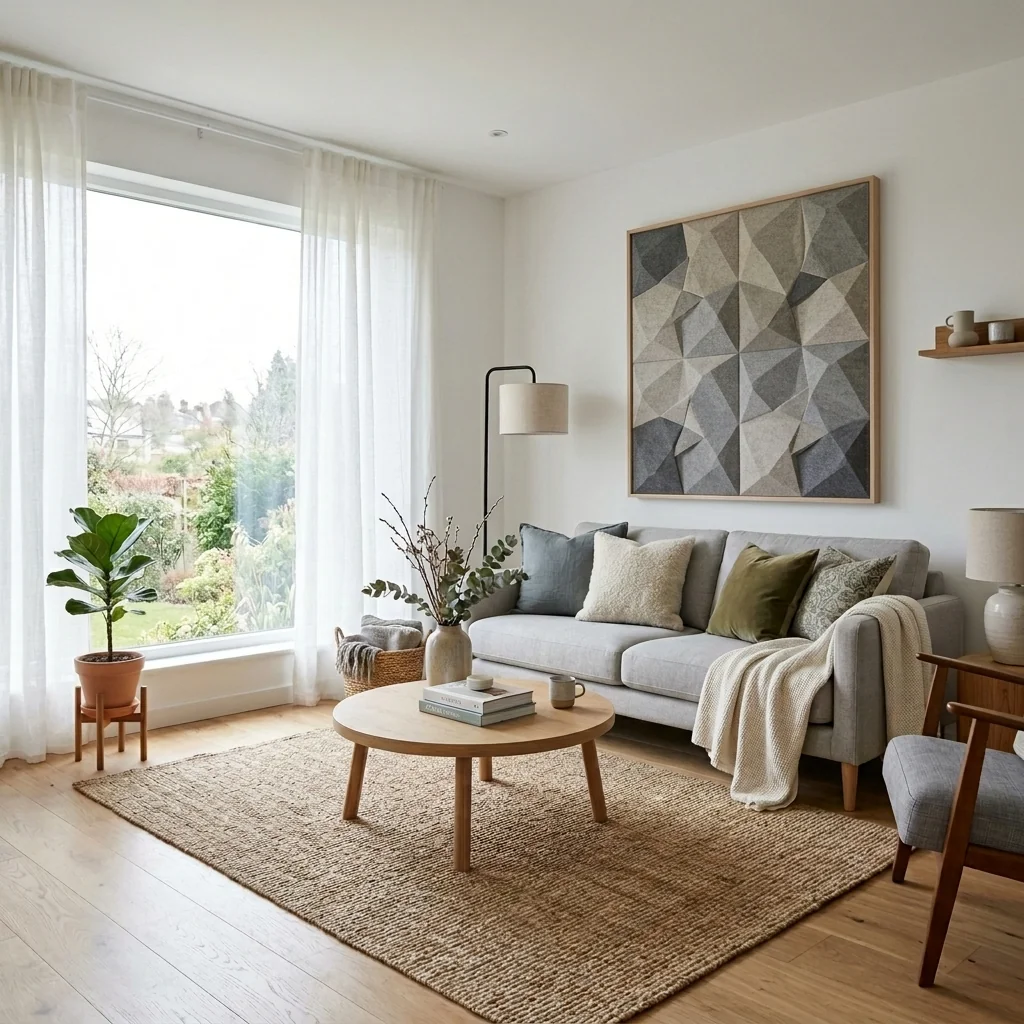
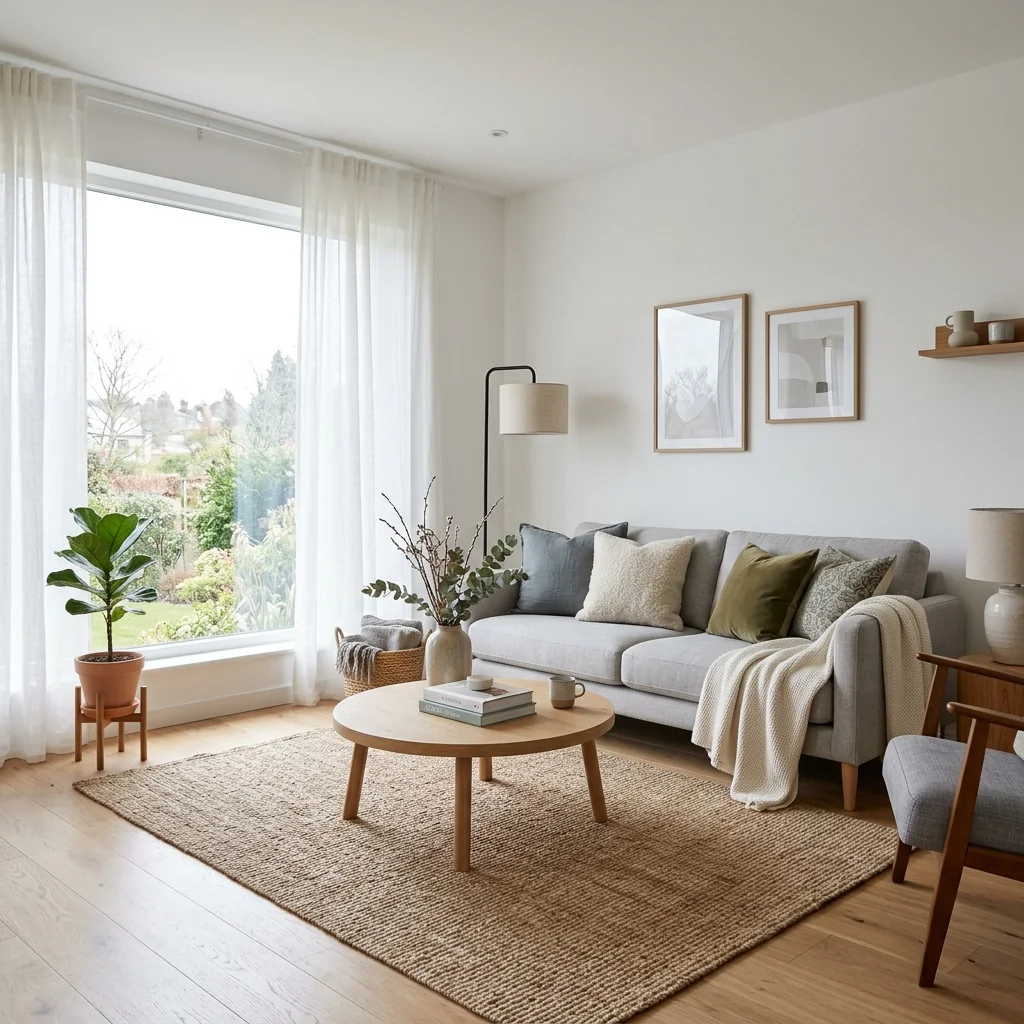

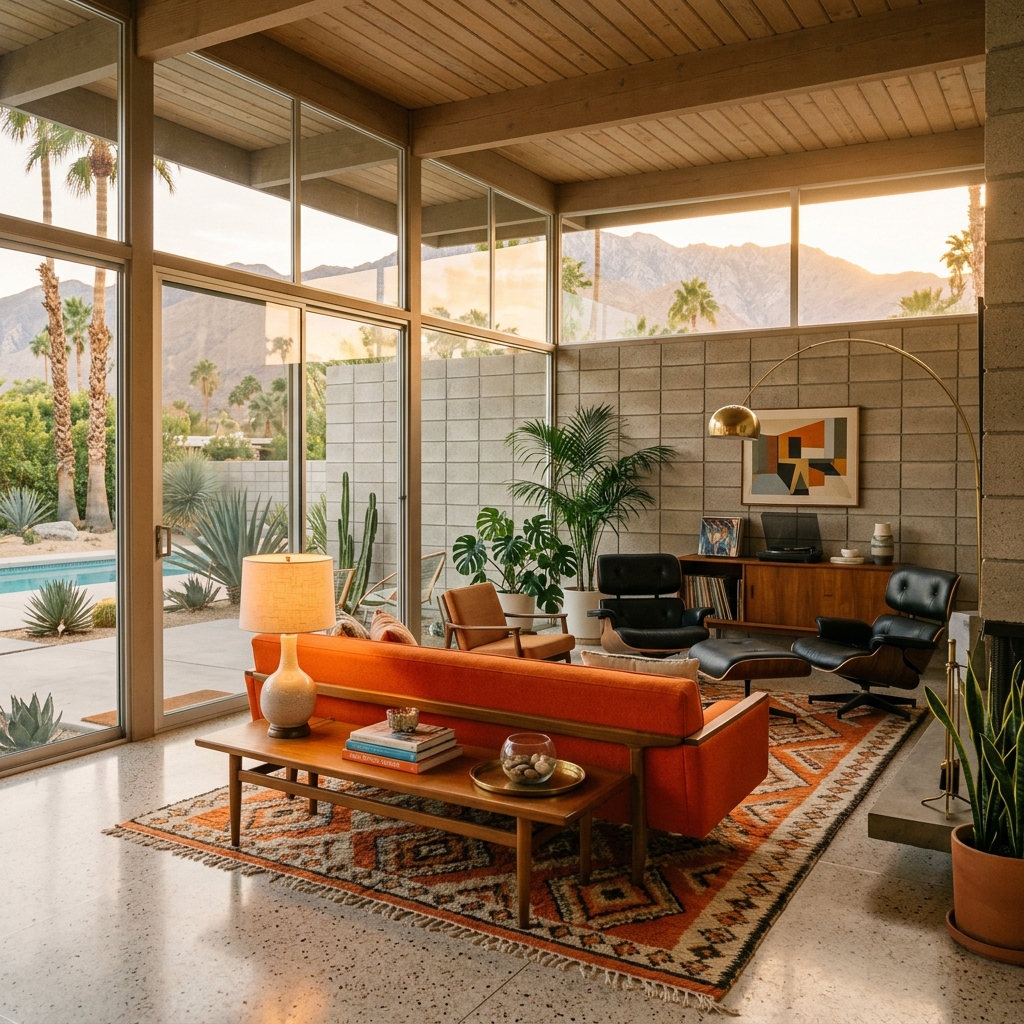

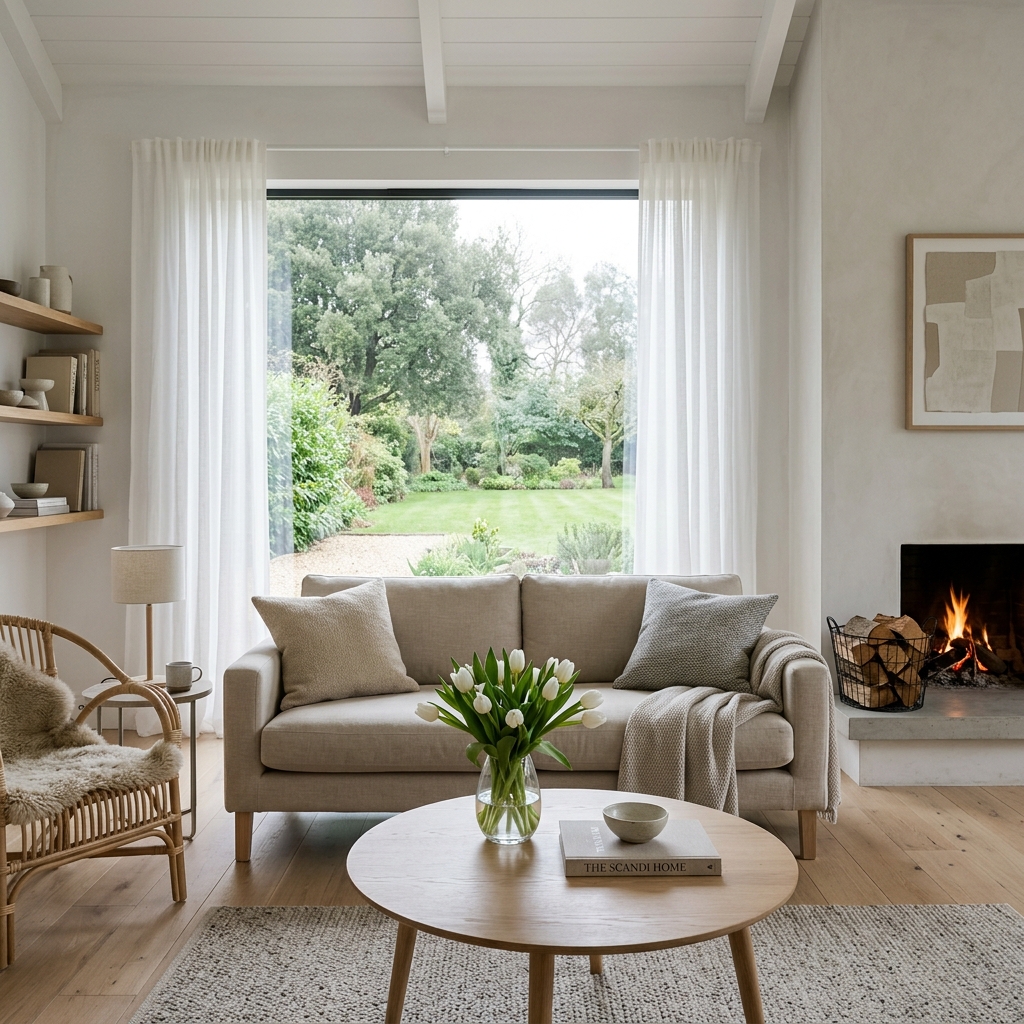
How it works
- 1Upload your photo
- 2Choose your settings
- 3Your image
Tips for a great result
Bright, clear photo
Daylight and a wide angle give the best result.
Show the whole area
Keep everything you want to change fully in the picture.
Try several variations
Compare different options before you decide.
Frequently asked questions
Can I use the images commercially?
Yes. You can use your images for any purpose, including commercial use.
Does my original photo change?
No. Your original stays unchanged and you can download it at any time.
What if I don't like the result?
Try another style or setting, or refine the result with a short instruction.
Keep exploring
All tools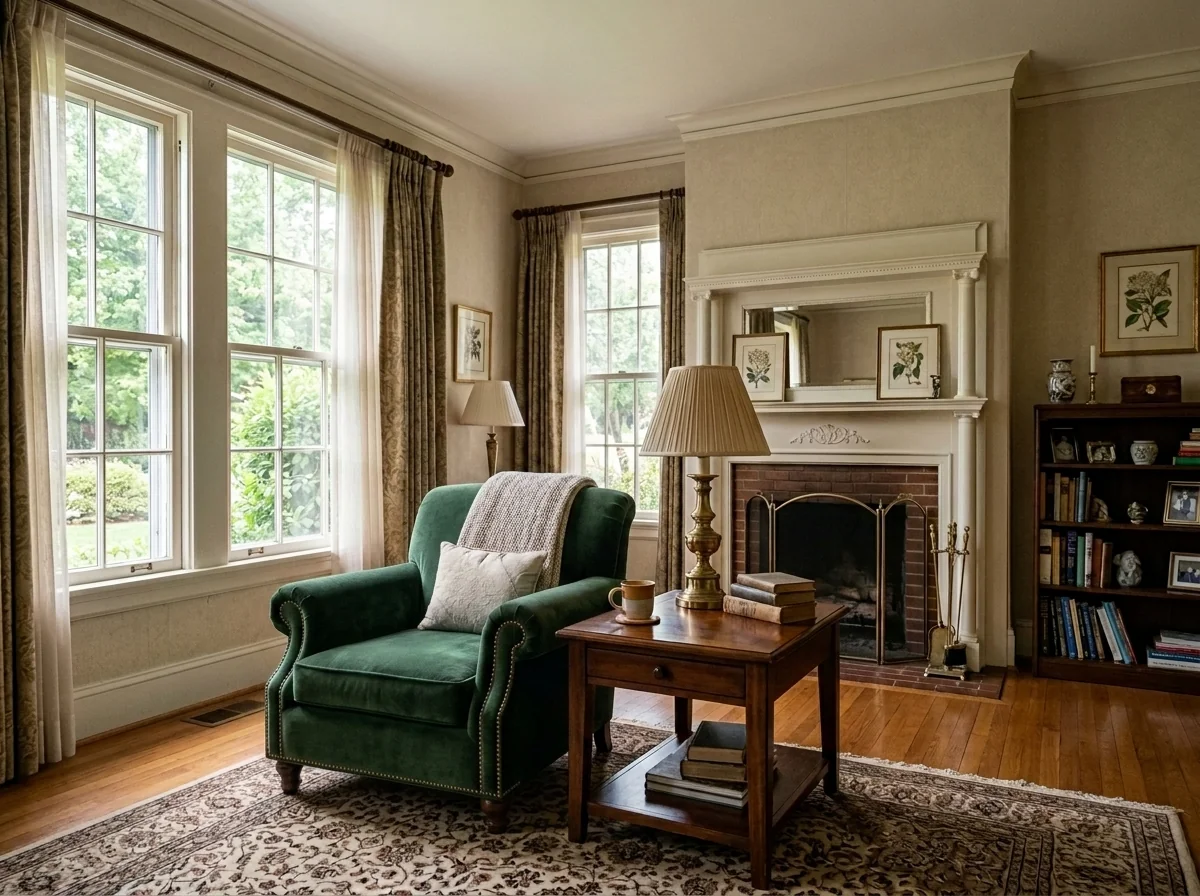
AI Armchair Upholstery Swapper
Use a photo of your armchair to explore fabric, color and pattern ideas. Choose the available material settings and compare any returned image with your original.
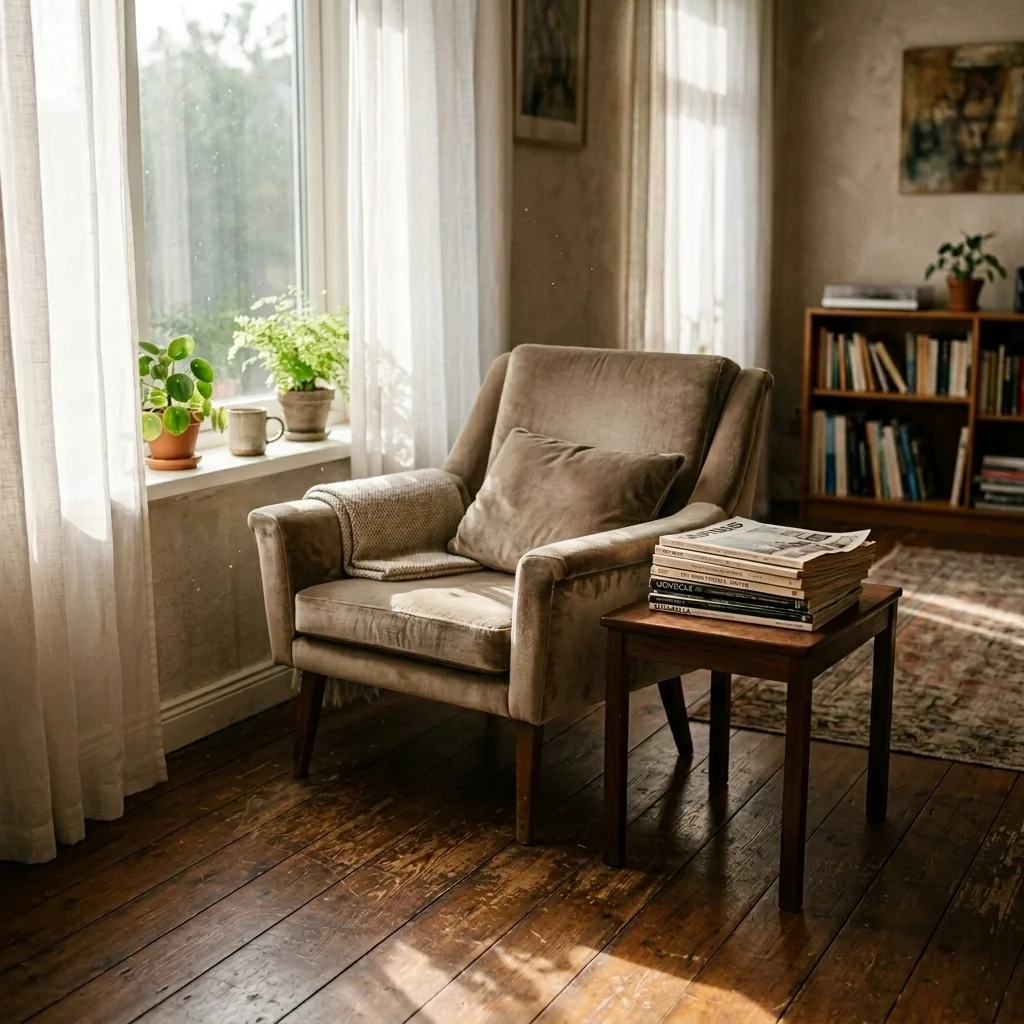
AI Furniture Upholstery Changer
Preview an upholstery idea on a furniture photo. Choose a material such as velvet, leather or linen and optionally describe a colour; check fabric details in the returned image.
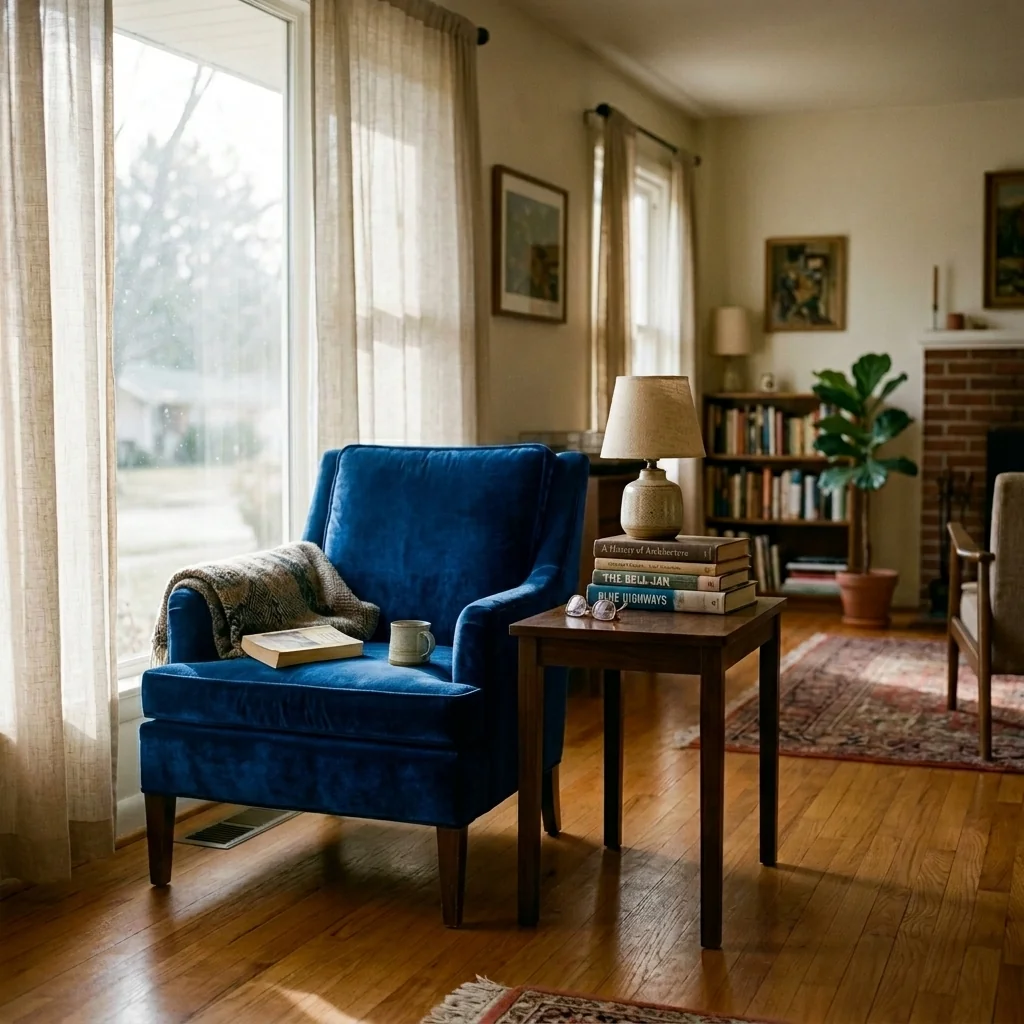
AI Upholstery Visualizer
Preview a fabric idea on a sofa or chair photo. Choose the fabric, colour, texture and finish to compare a visual concept with your original before choosing real materials.
Read the full guide
Prepare your idea
Describe the change you want to explore on a property photo. Review the requested edit and compare the returned image with your original; not every described change can be reproduced exactly.
Prepare your source photo and the references listed in the form. Its settings describe the intended changes.
Review the request and result
Review availability, image count and the current total before explicitly confirming. Registration alone does not establish credits or a free result. If the outcome is unclear, check the saved status of the existing request before confirming again.
How long does generation take for AI Photo Editor?
Processing time varies with your image, requested edit and service availability. If confirmation is delayed, check the saved request status before submitting another image request.
Can I use the results commercially?
Commercial use is governed by the service terms and your rights in the uploaded material. Review AI changes for accuracy and follow your listing platform’s rules before publishing.
Read the earlier original guide
This earlier guide may contain historical price, timing, quality or usage statements. Use the current description and tool form.
Tips for your photo
Make sure the photo is well lit and shot from a wide angle.
Remove clutter before shooting the photo for the best results.
Use re-staging mode for targeted style changes.
Frequently asked questions
What are the optimal input formats and resolutions for the AI Photo Editor?
Upload JPG, PNG, or TIFF files up to 20MB. For superior real estate photos, ensure images are at least 1920px on the longest side. This allows the AI Photo Editor to effectively enhance property listing details for MLS and Zillow.
How long does the AI Photo Editor take to process an image?
The AI Photo Editor typically processes images within 15-30 seconds, depending on file size and complexity of your description. Enhance multiple real estate photos efficiently, allowing agents to quickly update their property listings.
What output quality can I expect from the AI Photo Editor?
Expect high-resolution, print-ready images. The AI Photo Editor intelligently stages and enhances real estate photos, delivering professional-grade results perfect for MLS, Zillow, and all property listing platforms.
What are the best practices for achieving optimal results with the AI Photo Editor?
To achieve optimal real estate photos, provide clear, descriptive text. Stage your property listing by specifying desired changes like 'add blue sky' or 'remove clutter.' The AI Photo Editor thrives on precise instructions.
Can I re-generate an image with different descriptions using the AI Photo Editor?
Yes, absolutely. You can easily re-generate images. Simply modify your description and the AI Photo Editor will produce a new version. Enhance your real estate photos iteratively until your property listing is perfect for any agent.
Technical FAQ: AI Photo Editor
Quick answers for optimal results
Common mistakes
5 AI Photo Editor Mistakes That Kill Your Real Estate Photos
How to Photo Editor Online to Enhance Property Listings for MLS & Zillow
Ignoring Perspective Correction
Distorted lines make rooms look smaller and unprofessional, deterring potential buyers from clicking on your property listing.
Use the AI Photo Editor's perspective correction feature to straighten vertical and horizontal lines, creating a more balanced and appealing image for Zillow.
Over-Saturating Colors
Unnatural, overly vibrant colors can make real estate photos look fake and unrealistic, potentially misleading potential buyers.
Use the AI Photo Editor's color adjustment tools to subtly enhance colors, ensuring they appear natural and inviting in your property listing.
Neglecting Brightness and Contrast
Poorly lit or overly contrasted photos obscure details and make properties look unappealing, reducing clicks on your MLS listing.
Use the AI Photo Editor's brightness and contrast controls to achieve a balanced exposure, highlighting key features and creating a welcoming atmosphere for Zillow users.
Forgetting Virtual Staging
Empty rooms lack appeal and make it difficult for potential buyers to visualize themselves in the space, lowering interest in your property listing.
Use the AI Photo Editor's virtual staging feature to add furniture and decor, creating an inviting and realistic representation of the property for Zillow and MLS.
Not Removing Clutter
Distracting clutter draws attention away from the property's features and creates a negative impression, hindering potential buyers from viewing your property listing.
Use the AI Photo Editor's object removal tool to eliminate unwanted items, ensuring a clean and professional presentation for your real estate photos on Zillow.
AI Photo Editor: Transform Your Real Estate Photos - See the Difference!
Upload your property listing photos and see how AI enhances your Zillow presence.
Your workflow
4 Steps to Transform Real Estate Photos with an AI Photo Editor
How to Photo Edit Online and Enhance Property Listings for MLS
Upload
Upload your real estate photos to the AI Photo Editor. Ensure images are high-resolution for optimal results when editing property listings.
Use photos with good lighting and clear angles to maximize the AI's ability to enhance real estate photos.
Describe
Describe the changes you want to make to your real estate photos using the AI Photo Editor. Be specific, like 'add a blue sky' or 'remove clutter' to improve your property listing.
Use precise language when describing changes for the AI Photo Editor to generate the most accurate results for your real estate photos. Include details like color and size.
Generate
Let the AI Photo Editor generate the enhanced real estate photos based on your description. Review the results and refine your descriptions as needed to optimize your property listing.
Experiment with different descriptions to achieve the desired look for your real estate photos. The AI Photo Editor learns from each iteration.
Download & Stage
Download the enhanced real estate photos from the AI Photo Editor and upload them to your MLS, Zillow, or other property listing platforms. Stage your property virtually to sell faster.
Optimize the file size of your enhanced real estate photos before uploading to MLS or Zillow to ensure fast loading times and a better user experience for potential buyers.
Use cases
Real Estate Listings for AI Photo Editor
Social Media Marketing & Instagram Inserate
Architektur- & Umbau-Präsentationen
AI Photo Editor Technical Specifications
Describe any change. AI makes it real.
1. Upload your property photo.
2. Choose the interior style or room type you want.
3. Click Generate and get your result in seconds.
Expert guide
5 Pro Tips: Transform Real Estate Photos with AI Photo Editor
How to Photo Editor Online to Enhance Property Listings for MLS and Zillow
Prepare High-Resolution Images for AI Photo Editor
Upload crisp, clear real estate photos to the AI Photo Editor for optimal results. Avoid blurry or pixelated images; high resolution ensures the AI can accurately interpret and enhance details, leading to more appealing property listing visuals for potential buyers and agents.
Adjust AI Photo Editor Settings for Specific Styles
Experiment with different AI Photo Editor settings to achieve your desired aesthetic. Fine-tune parameters like brightness, contrast, and saturation to match your brand and target audience. This ensures your real estate photos stand out on Zillow and attract more attention from prospective buyers.
Achieve Best Results with Detailed AI Photo Editor Prompts
Provide specific and detailed descriptions to the AI Photo Editor. The more information you give the AI, the better it can understand your vision and generate accurate and visually stunning results for your property listing. Be precise about desired changes and enhancements.
Leverage AI Photo Editor for Professional Real Estate Marketing
Use the AI Photo Editor to create consistent and professional-looking real estate photos for all your property listings. Ensure that every image showcases the property's best features, attracting more qualified leads and helping you close deals faster as a real estate agent.
How it works
3 Steps to Master the AI Photo Editor
How to use an AI photo editor for real estate listings online
Upload Your Real Estate Photos
Upload your high-resolution property listing images to the AI Photo Editor to begin the enhancement process for MLS, Zillow, or professional broker marketing materials immediately.
Describe Your Desired Property Changes
Describe exact instructions to remove furniture, change wall colors, or perform home staging; our AI Photo Editor interprets your text to transform the property interior instantly.
Download High-Res Listing Images
Download your final retouched real estate photos from the AI Photo Editor in high-resolution formats ready for immediate listing on property portals to attract home sellers.
What you can do
Advanced AI Photo Editor Capabilities
Enhance Image Clarity with AI
The AI Photo Editor automatically refines every pixel, ensuring your real estate photos achieve stunning, high-resolution output for flawless listings.
Instant AI Photo Editing
Experience lightning-fast processing with the AI Photo Editor, reducing editing time so agents quickly upload enhanced images to MLS and Zillow.
Versatile AI Format Support
The AI Photo Editor seamlessly handles various image formats, ensuring your edited real estate photos are optimized for any platform or agent requirement.
Tailored AI Editing Controls
Leverage the AI Photo Editor's intuitive controls to fine-tune specific elements, allowing agents to customize every detail of property listing images.
Pinpoint AI Accuracy
The AI Photo Editor employs advanced algorithms for unparalleled precision, ensuring every adjustment to real estate photos is exact and realistic.
Professional AI Editing for Agents
Designed for real estate professionals, the AI Photo Editor delivers studio-quality results, elevating property listing photos to attract more buyers.
Transform Your Real Estate Photos with AI Precision