
Object Placement Tool
Explore adding a described object to a room photo. Choose placement and style, and use the placement tools where offered; check scale, shadows and room details in the returned image.
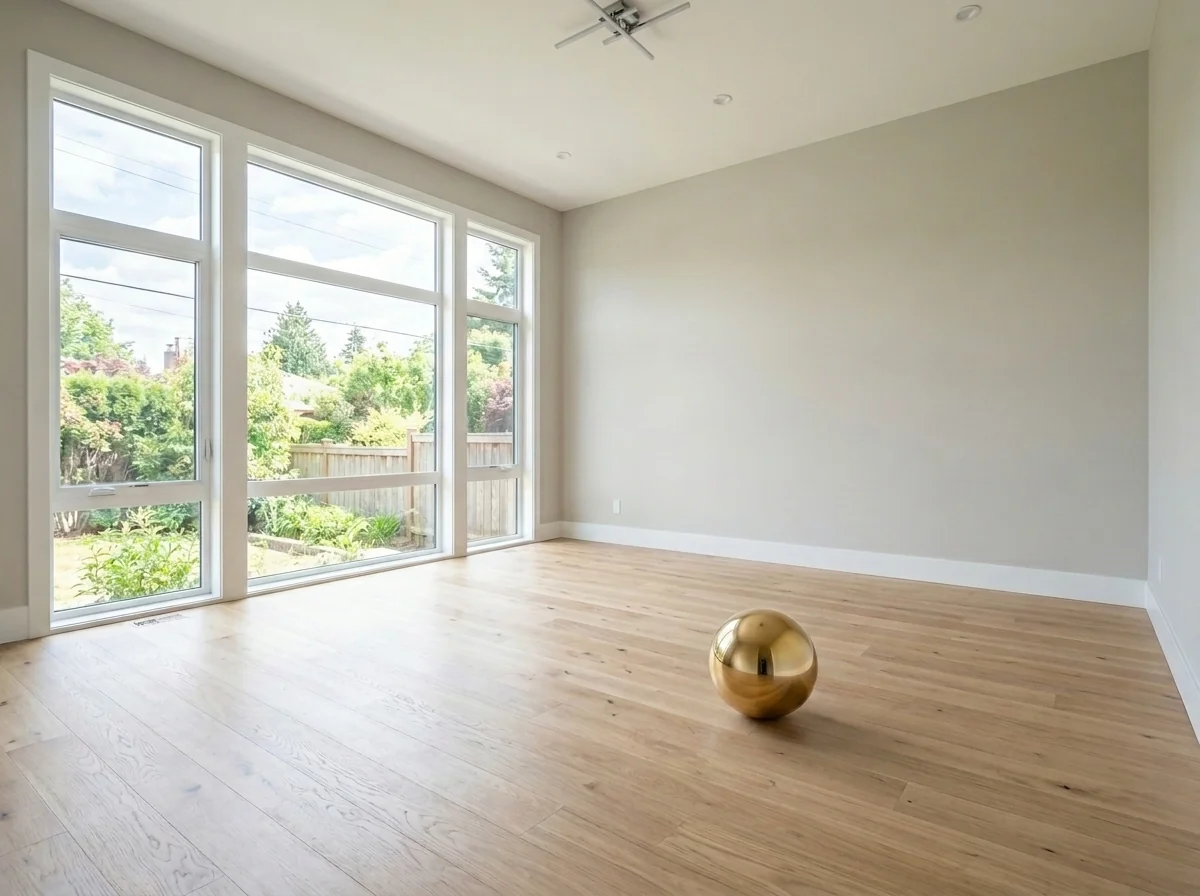
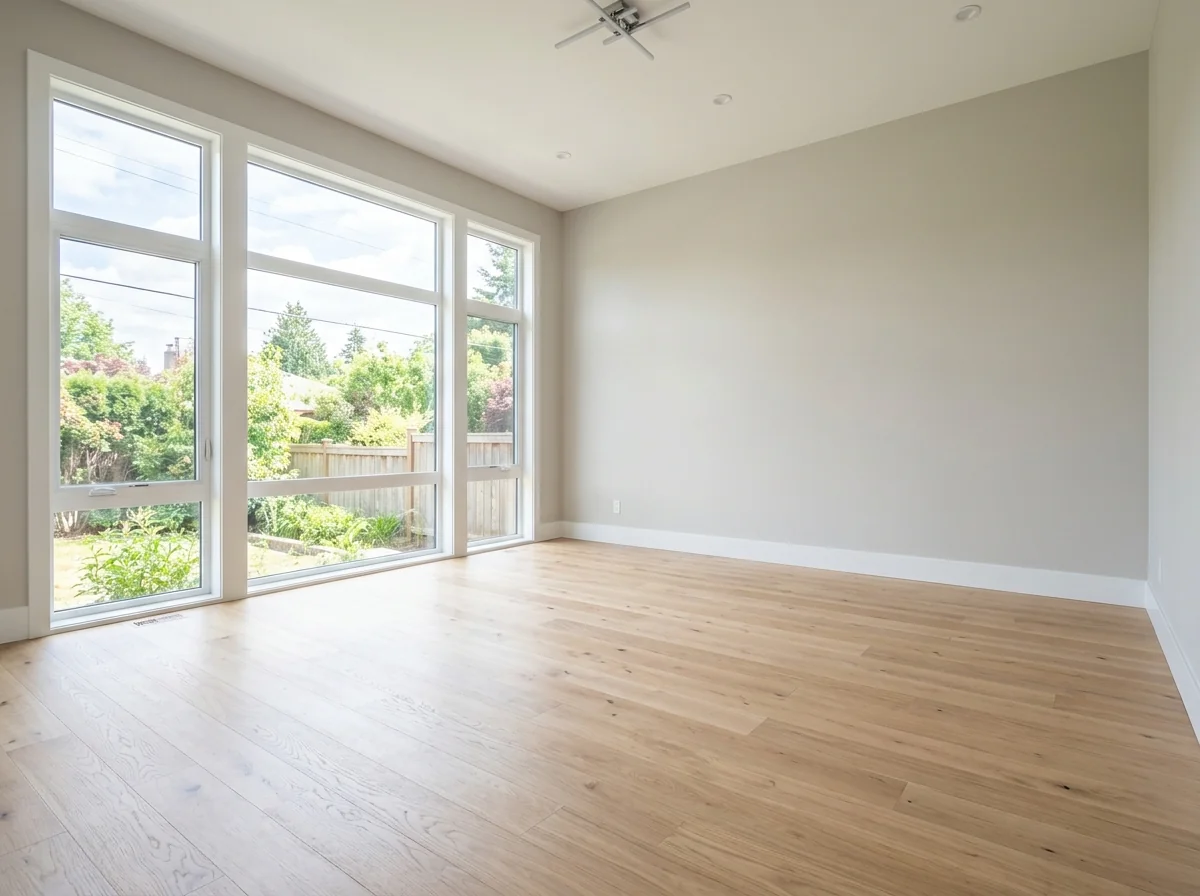
Example · Your result depends on your photo and settings.
1 image free after verified sign-in · No credit card
Choose a photo. Review the look. Sign in to create.
Examples and photo tips
What to prepare
JPG, PNG, WebP, HEIC or HEIF · up to 20 MB per photo
At least 64 × 64 pixels; JPG/PNG/WebP up to 40 megapixels.
HEIC/HEIF: up to 4 megapixels. Larger images need a JPG, PNG or WebP copy.
A clear source photo
Well lit, with the whole area visible.
An idea of the change you want
The editor shows the options for this tool.
Review AI changes before publishing a property image.
Explore more examples
View original photo
Before - Empty Room

View original photo
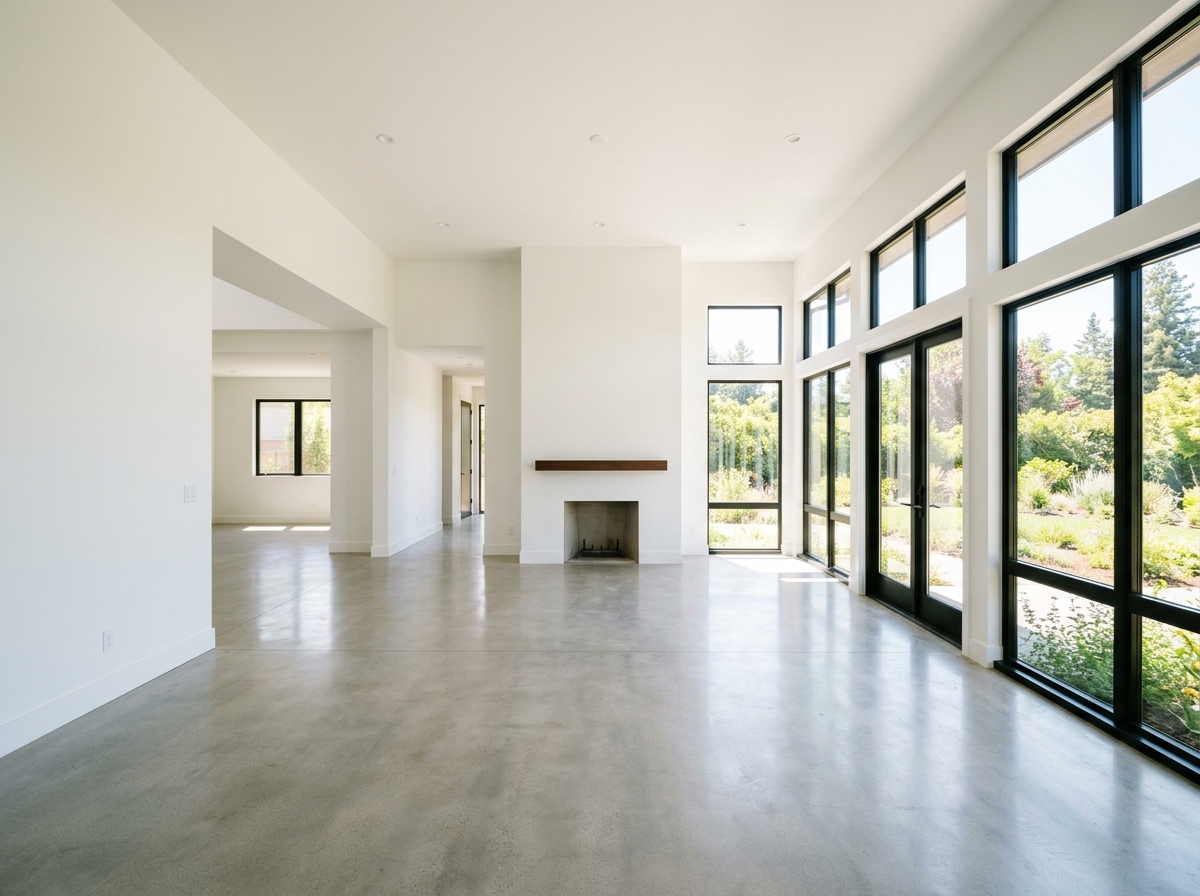
Before

View original photo
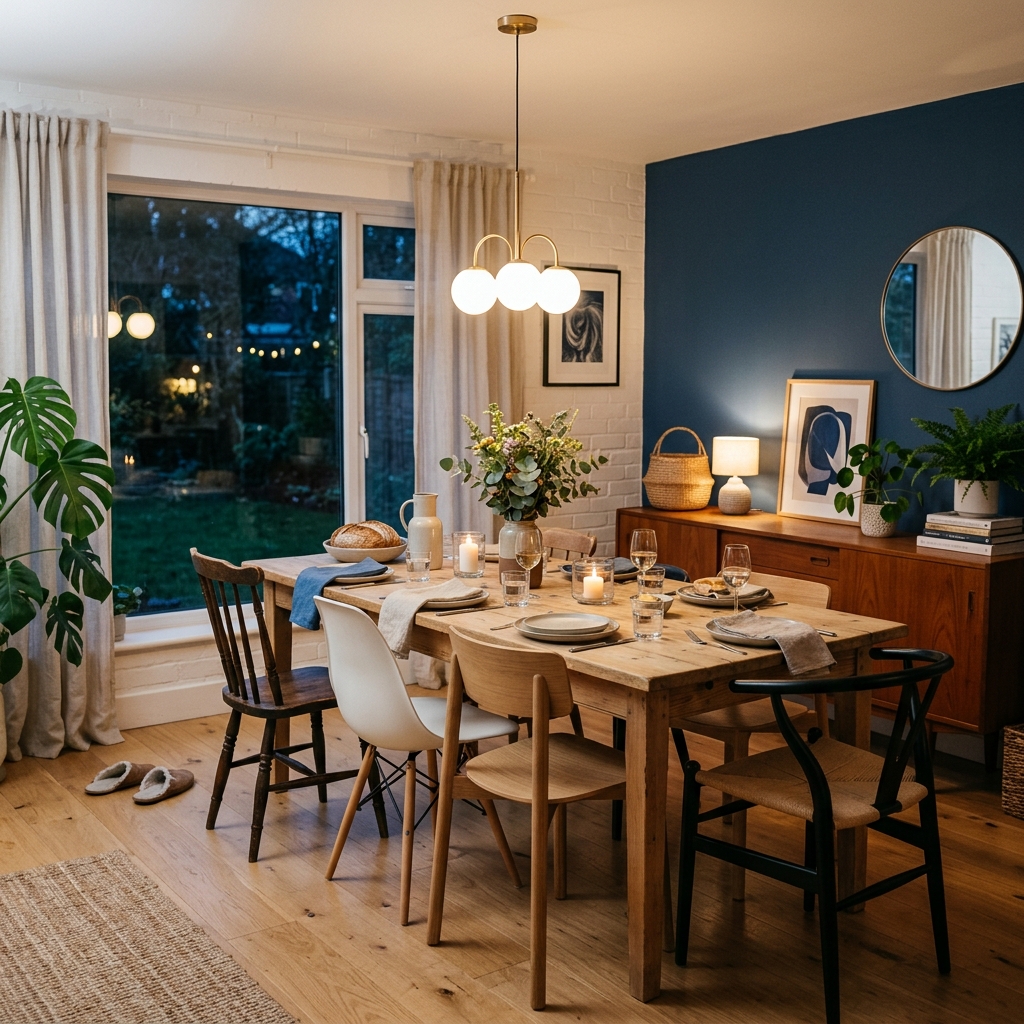
Before
About this tool
Virtual Staging & Styling
Prepare your idea
Explore adding a described object to a room photo. Choose placement and style, and use the placement tools where offered; check scale, shadows and room details in the returned image.
Prepare your source photo and the references listed in the form. Its settings describe the intended changes.
Review the request and result
Review availability, image count and the current total before explicitly confirming. Registration alone does not establish credits or a free result. If the outcome is unclear, check the saved status of the existing request before confirming again.
Read the earlier original guide
This earlier guide may contain historical price, timing, quality or usage statements. Use the current description and tool form.
Object Placement Tool: Before & After Examples for Real Estate (2024)
Transform Property Listings: Object Placement Tool for Zillow & MLS Photos
Expert guide
5 Tips to Master the Object Placement Tool for Real Estate Photos
How to use an object placement tool online to enhance your property listing and attract more buyers
How can an Object Placement Tool transform my real estate photos?
An Object Placement Tool allows you to virtually stage real estate photos by adding furniture, decor, and other objects. This enhances the visual appeal of your property listing on Zillow and the MLS, helping potential buyers envision the space's possibilities. Transform empty rooms into inviting homes with realistic object placement.
Is using an Object Placement Tool compliant with NAR and MLS guidelines?
Using an Object Placement Tool is generally compliant with NAR and MLS guidelines as long as you disclose that the images have been virtually staged. Transparency is key. Ensure your property listing clearly states that objects have been digitally added to the real estate photos. Consult your local MLS rules for specific regulations.
What is the cost of using an Object Placement Tool compared to traditional staging?
The cost of using an Object Placement Tool is significantly lower than traditional staging. Traditional staging can cost thousands of dollars, while an Object Placement Tool offers a cost-effective alternative. Enhance your property listing for a fraction of the price, saving you money while still attracting potential buyers.
How does an Object Placement Tool ensure high-quality, realistic results for real estate photos?
A high-quality Object Placement Tool uses advanced AI algorithms to ensure realistic results. It considers perspective, lighting, and shadows to seamlessly integrate objects into the real estate photos. Upload your space, describe the desired objects, and the AI will generate natural-looking images perfect for your property listing.
What are the best uses for an Object Placement Tool in real estate marketing?
The best uses for an Object Placement Tool include virtually staging vacant properties, showcasing different design styles, and highlighting the potential of challenging spaces. Enhance your property listing by adding furniture, decor, and other elements that appeal to a wide range of buyers, increasing interest and engagement on Zillow and other platforms.
How can I integrate an Object Placement Tool into my existing real estate workflow?
Integrating an Object Placement Tool into your workflow is seamless. Upload your real estate photos directly to the tool, describe the objects you want to add, and let the AI do the rest. Enhance your property listing quickly and efficiently, saving time and resources while improving the overall presentation of your properties to potential buyers.
How it works
How AI Object Placement Tool Works
Effortless virtual staging in 3 steps.
Upload & Describe Your Vision
Upload your room photo and simply describe the furniture or decor you want to add. Be specific – 'a modern grey sofa' or 'a large ficus plant' – for best results.
AI Intelligently Places Objects
Our AI analyzes the photo's perspective, lighting, and shadows to seamlessly integrate your requested objects. No manual adjustments needed – it just works!
Review & Download Your Image
Examine the AI-generated result. If satisfied, download your enhanced image instantly. If not, refine your description and re-process for perfect virtual staging.
What you can do
AI Object Placement: Stage Photos Instantly
Virtual Furniture Staging
Instantly add sofas, tables, beds, and more to empty rooms, showcasing their potential to buyers.
Accurate Perspective & Scale
AI ensures objects are placed with correct perspective, size, and realistic proportions.
Realistic Lighting & Shadows
AI matches lighting and adds natural shadows for seamless, believable object integration.
Diverse Object Library
Choose from a wide range of furniture styles and decor to match any property's aesthetic.
Save Time & Money
Avoid expensive physical staging. Get stunning, staged photos in minutes, not days.
Boost Listing Appeal
Attract more buyers with visually appealing, fully furnished photos that highlight the property's charm.
Add furniture & decor to photos with AI. Perfect staging, zero hassle.
Fill Empty Spaces: AI Object Placement
Add furniture & decor to photos in seconds. Perfect perspective, lighting, & shadows, guaranteed.
Compare editing approaches
Review timing, cost, available options and the editing steps for your photo.
Creation time
Other services: Agree on a delivery deadline before work starts.
PropStage: Processing time varies. If a result is delayed, check its saved request status instead of sending the same request again.
Cost per image
Other services: Ask for a written quote covering the agreed work and any additional fees.
PropStage: Review the credit cost before confirming a request. Check the current offer before choosing a plan.
Styles and variations
Other services: Confirm which styles and revisions are included.
PropStage: Use the options offered by this tool. Review the credit cost before confirming each new image request.
Editing workflow
Other services: Agree on the source photos, references and final review.
PropStage: Review the required photos and settings before confirming. Keep your original and compare the saved result before publishing.
Read the earlier original guide
This earlier guide may contain historical price, timing, quality or usage statements. Use the current description and tool form.
Instantly Stage Vacant Rooms: AI Object Placement
Transform empty listings into warm, inviting spaces with PropStage.ai's Object Placement Tool. Effortlessly add furniture, decor, and more to your photos, showcasing each room's full potential. Our AI ensures perfect perspective and realistic lighting, making virtual furniture placement a breeze for stunning visuals.